Are you currently using Windows Live Mail to access and manage your emails, and want to have a backup of your emails on an external hard drive? If yes, then you are on the right page.
In this blog, we have explained an automated method that will help you back up Windows Live Mail to different file formats like PST, EML, EMLX, HTML, MSG, MBOX, NSF, Thunderbird, etc, on your external hard drive.
Emails have become an important part of life for both working professionals and home users. Users need a proper email client to access and organise emails by configuring email accounts into them.
Windows Live Mail is one of the popular email clients, but it has been discontinued now. Windows Live Mail is used to manage emails on the desktop computer and with the passage of time email data grows. The large email data stored on the WLM reduces performance, and therefore has chances of corruption.
To solve the problem of corruption of the WLM data, it is better to have a backup of the WLM email database on an external hard drive.
User query: I have been using Windows Live Mail for a long time now, and I want to have a backup of my email data on an external hard drive. As with the increase in data size, the performance of the WLM email client reduced because of limited storage capacity. Now, I want to have a backup of WLM emails so I can delete older emails from the WLM account. Can anyone suggest a method for doing so?
Why have a backup of emails from Windows Live Mail to a Hard drive?
As every email client has a storage limit so there is a chance of corruption of email data, so it is better to have a backup of emails from Windows Live Mail. Various reasons are such as
- Virus and malware attacks: If your operating system is attacked by a virus attack then the email data will be corrupted, and it will not open.
- Accidental deletion: If a user deletes an important email accidentally, then the user can use the backup of emails.
- System formatting: In the system formatting whole hard disk data is deleted, and if you have a backup of WLM emails on another external Hard drive, then it is retrieved.
- Performance issues: If you have a large collection of emails in the WLM mailbox, then the overall performance of the WLM email client reduces due to limited storage capacity. To solve this problem, users can save old emails from the WLM mailbox to the hard drive and delete old emails from WLM.
- Email client switching: Users can save WLM data in a email file format that email clients like Microsoft Outlook, Mozilla Thunderbird, Apple Mail, etc supports.
Also Read: How to Export Windows Live Mail emails to Outlook on another computer?
How to Import Windows Live Mail to Thunderbird?
A Smart Solution of Backing up
The user can use the eSoftTools Windows Live Mail converter software to save emails from Windows Live Mail to the Hard Drive. The software helps users to save Windows Live Mail emails, contacts, calendars, tasks and notes to their desired file formats on the Hard drive. This software allows users to save Windows Live Mail email, files & folders into 10+ different file formats on the local drive without any data loss. It also enables users to migrate WLM emails, files & folders to cloud applications like Gmail, Yahoo Mail, Office 365, Outlook.com and IMAP email accounts.
Benefits and features of Windows Live Mail Converter software
- This software allows users to take a backup of an unlimited Windows Live Mail mailbox.
- It has the option of auto-loading a Windows Live Mail mailbox into the software.
- The user can manually save the WLM files & folders to their desired location on the hard drive.
- Provides a preview of WLM files & folders in the preview panel inside the software.
- Can export selective WLM emails, files & folders to other file formats.
- Have an amazing feature of email filtering that filters emails according to Date.
- Easily runs on any editions of the Windows operating system, like Windows 11, 1o, 8.1, 8, 7 & below editions.
How to save emails from Windows Live Mail to the hard drive?
- Download and install the eSoftTools Windows Live Mail converter software on your system.
- Open the software and click the Select WLM mailbox button on the menu bar.
- Now select the WLM folder selection option:
- Auto-detect the WLM file location: The software will automatically identify the WLM file location from your hard drive.
- Select Manually WLM file location: The user has to manually add the WLM file into the software.
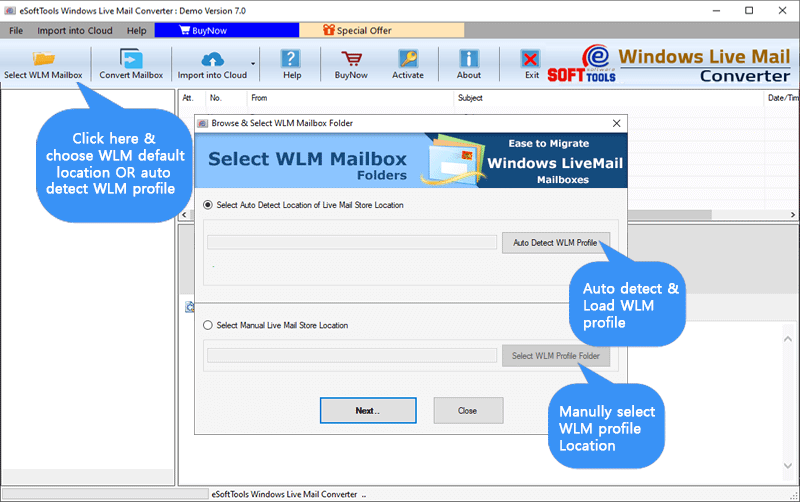
- Click the Next button, and all the WLM files & folders will be loaded into the software.

- Select the WLM files & folders and click the Convert Mailbox button on the menu bar.
- Now a new conversion window will open and show different conversion options like PST, EML, MSG, MBOX, EMLX, HTML, NSF, Thunderbird, etc.
- Select any one option by selecting the radio button.
- Apply Mail filter and the Naming convention feature if required.
- Browse the saving location where you want to save the backup of the WLM files on your system.

- At last, click the Convert button and WLM files & folders are converted to the desired file formats.
Conclusion
If you are in search of the easiest and reliable solution to have a back up of WLM emails, files & folders then mentioned software is the solution. The mentioned software has simple steps and if you follow those steps then backup of WLM mailbox will be done error-free. If you want to check how software works then you can try the free demo version of the software.
FAQs
Q. Can I back up the WLM mailbox in Outlook-compatible file format?
Ans. Yes, users can back up their WLM mailbox in PST and MSG file formats and open these files on any version of Outlook.
Q. Can I choose selective WLM emails, files & folders to back up on the hard drive?
Ans. Yes, users can select WLM emails, files & folders that users wish to have a backup on the hard drive.
Q. Can I import WLM emails to cloud applications like Office 365?
Ans. Yes, users can easily import WLM emails, files and folders to cloud applications like Office 365, Gmail, Yahoo Mail, Outlook.com and IMAP email accounts.
Q. Can I export a WLM mailbox to Mozilla Thunderbird with this tool?
Ans. Yes, users can convert a WLM mailbox to the MBOX file format and open those files in Mozilla Thunderbird.
Q. Can I convert multiple WLM mailboxes at one time?
Ans. Yes, the user can insert multiple WLM mailboxes into the software at one time and convert them to selected file formats.



No Comments yet!