IBM Lotus Notes (or HCL Notes) and Outlook are leading email clients that store emails and other mailbox data. However, sometimes situations arise when we need to Convert Lotus Notes Address Book to Outlook. However, you cannot directly export the Lotus Notes data into Outlook. You have to follow manual and automated methods.
What are Lotus Notes?
Lotus Notes (or HCL notes) are used by many business organisations for email communication. It is used for storing emails, contacts and other data in a file called NSF(Notes Storage Facility).
Why convert Lotus Notes to Outlook?
A question may come to your mind as to why you should convert Lotus Notes data into Outlook. Well, Outlook is another email client that has a user-friendly interface, high security, and the best features. To use Outlook you have to convert Lotus Notes Address Book to Outlook?
Methods to convert Lotus Notes to Outlook
- Manual Method
- Automated Method
Manual Method
In the manual method, you follow two steps
- Export contacts from Lotus Notes to a CSV file
- Import the CSV file into Outlook.
Step1: Export contacts from Lotus Notes to a CSV file
- Launch the IBM Notes or HCL Notes on your system.
- Open the NSF file in the software.
- Go to the ‘File’ Menu.
- Click on the ‘Export Contacts’ option.
- Then Export Contact wizard will be open.
- To export all contacts in this view click checkbox from Which contacts do you want to export.
- To export all the information of the contact Select the All fields option.
- Under the Save As section, Select the location of your computer to save the CSV file in the Save To field.
- Give a Name to your file in the File name field.
- In the Save as type field select Comma Separated Value(.csv) from the drop-down menu.
- Click the Export button.
The selected contacts will be saved in the CSV file.
Step 2: Import the CSV file into Outlook
- Launch Outlook software in your system.
- Go to the ‘File menu’ and choose the ‘Open & Export’ option.
- After that, choose the ‘Import & Export’ option.
- Select ‘Import from another program’ and click Next.
- Select ‘Comma Separated Value(Windows)’ and click Next.
- Browse the location of the CSV file and select the CSV file.
- Choose ‘Do not Import Duplicate Items’ and click the Next button.
- Select the destination folder where you want to save the file and click Next.
- In the next window, select the Map Custom field and click Ok.
- Once the process is complete, click the Finish button.
Automated Method
In the Automated Method, use the eSoftTools Lotus Notes Address Book Converter Software. You can convert Lotus Notes Address Book to Outlook. It can convert Lotus Notes NSF files into other file formats such as PST, CSV, vCard, and MSG. In the preview panel of the software, you can view the Lotus Notes contacts and select the contacts you want to convert. You can choose multiple NSF files in bulk NSF file conversion mode. It can export contact details such as Name, phone number, email address, attachments, etc. You can migrate NSF files to web-based email clients such as Gmail, Yahoo Mail, Office 365, etc.
This software can convert NSF files of software such as IBM Notes, HCL Notes, and Lotus Notes. It can work with all editions of Windows operating systems such as Windows 11, 10, 8.1, 8, 7, Vista, XP, and older versions. In the demo version of this software, you can convert 25 contacts from NSF files for conversion. By following the steps, you can do the conversion.
Also Read:- How to convert Lotus Notes Archive files to Outlook PST?
Steps to convert Lotus Notes Address Book to Outlook
- Download and install eSoftTools Lotus Notes Address Book Converter Software on your system.

- Select the NSF File button and choose from Single and Bulk file conversion options.
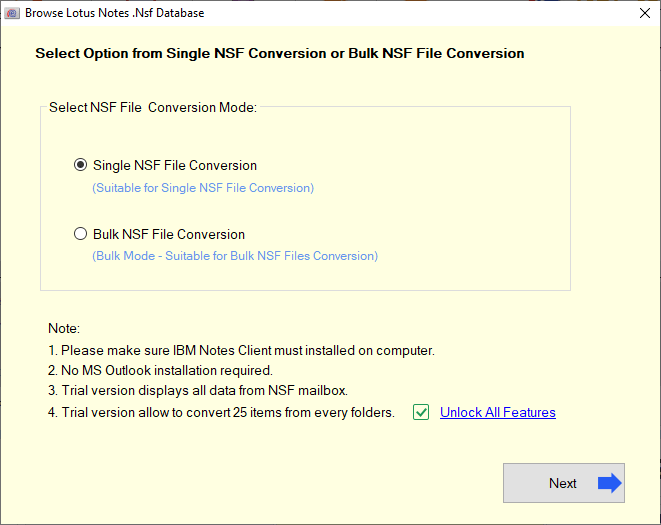
- Open the NSF file and preview NSF file emails and contacts in the preview panel.
- Choose the contact folder from the list and click the Convert button.

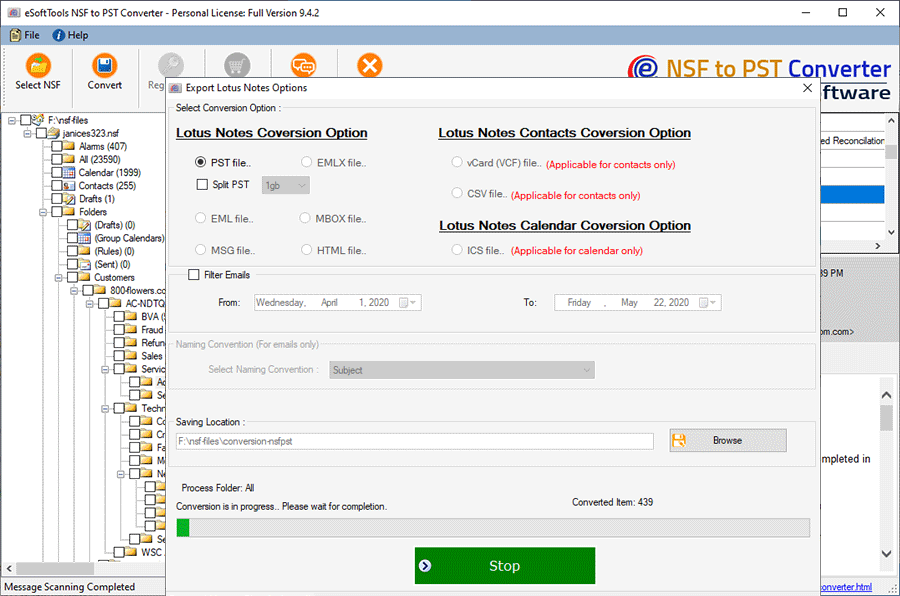
- Select from the list of conversion formats – PST, MSG, vCard and CSV.

- Browse the location where you want to save the output contact file.
- At last, click the Convert button to convert the address book.
Conclusion
A manual method can be used when you have to convert Lotus Notes Address Book to Outlook and if you have to export multiple files you have to use third-party software such as eSoftTools Lotus Notes Address Book Converter Software. This software can easily and with 100% accuracy convert Lotus Notes files to Outlook files.

No Comments yet!