Are you looking to convert Lotus Notes Archive files to Outlook PST? Here, I will let you know the best approaches to open Lotus Notes Archive files in MS Outlook with the best NSF to PST converter software, because there is no direct method to convert Lotus Notes Archive files in MS Outlook. In this blog, you will learn the difference between Lotus Notes and MS Outlook and the two approaches to opening Lotus Notes Archive files in MS Outlook. Here, I will discuss the Manual and Professional methods to convert and open Lotus Notes Archive files in MS Outlook.
Difference between Lotus Notes and MS Outlook
Lotus Notes and MS Outlook are both popular email clients. Lotus Notes stores emails and other data in the NSF file format, while MS Outlook uses the PST file format. Lotus Notes stores emails, contacts, calendars, to-do lists, and notes in the NSF (Notes Storage Facility) files, while MS Outlook stores them in the PST(Personal Storage Table) files. Below, I have discussed some points about how Lotus Notes is different from MS Outlook.
Storage File extension: Both email clients use different types of file formats to store data. IBM/HCL Notes uses the NSF file format, and MS Outlook uses the PST file format.
User Interface: Outlook is better than Lotus Notes in this regard. Outlook has a user-friendly interface, while Lotus Notes has a complex interface.
Easy-to-use: Outlook’s user-friendly interface makes it easy to use and can handle multiple email accounts without any problems.s
Lotus Notes requires technical understanding: To operate Lotus Notes, users require technical knowledge of the software to open, read, and manage emails.
Add-on feature: Outlook allows its users to customize its functions according to their needs, whereas Lotus Notes doesn’t allow customization.
Platform dependency: Outlook PST files can be opened on any computer and any Outlook version, whereas NSF files only open on the computer on which it is created.
Why do users want to open NSF files in Outlook?
- Sometimes users want to open NSF files on other computers that have MS Outlook on them.
- When the user wants to switch from the Lotus Notes email client to the MS Outlook email client.
- Users want to use an MS Outlook email client because it has a user-friendly interface.
- If users want to configure more than one email account, then they prefer to use Outlook.
- Outlook is less costly as compared to Lotus Notes, which makes Outlook a preferable choice for more users.
How to open Lotus Notes Archive files in Outlook
To convert Lotus Notes Archive files to Outlook PST, you need to change the file extension of Lotus Notes NSF to PST because Outlook supports the PST file extension. Now we understand that Lotus Notes uses NSF files to manage the database, and Outlook uses PST files. To change the file extension, we have described two approaches, one is manual, and the other is professional software to convert NSF to PST files.
Manual approach to convert Lotus Notes archive NSF files to Outlook PST
In the manual approach, two steps are involved to convert and open Lotus Notes NSF files in Outlook. First, you need to export emails from Lotus Notes in a CSV file and then import the CSV file into Outlook. Both are mentioned below, but you need to create a backup of NSF files before conversion because the manual method is a little bit risky, and there are chances of data corruption in conversion.
- Open Lotus Notes and then open NSF files in the software.
- Press the File option and click on the Export option.
- Select CSV (comma-separated value) from the list.
- Select the location where you need to save the output CSV file.
- After that, you will see the dialogue box and select the options as displayed.
- Press the OK button.
Also Read:- How to Export Lotus Notes Calendar to Outlook?
The first step is completed, and now you need to move on to the second step, which is importing the CSV file into Outlook.
- Open the Microsoft Outlook on your system.
- Click on the File> Open & Export > Import/ Export option.
- Choose the option to import from another program or file from the Import and Export Wizard.
- Choose the Comma-separated Values and click on the Next button.
- Browse the location where the comma-separated values file is located and click on the Next button.
- Select the location where you need to save the PST and click the finish button.
Professional Approach to convert Lotus Notes Archive file to Outlook
In the professional approach, we will use a third-party application to convert the Lotus Notes archive file to Outlook. The eSoftTools NSF to PST converter software is reliable and most advanced, and it converts NSF to PST with a few clicks. This software is user-friendly and allows you to preview emails, contacts, calendars, to-do lists, and other items in the preview panel.
Below, we have mentioned steps to convert NSF to PST without any data loss.
- Download and install the eSoftTools NSF to PST converter software on your system.
- Click the Select NSF button to add NSF files to the software.
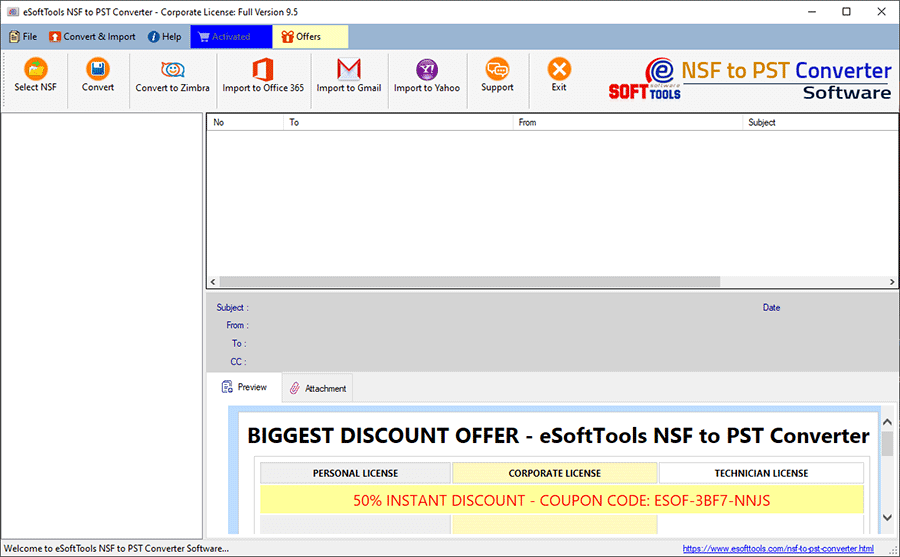
- To add single files in the software, select the option- Single NSF file conversion, and to add more files in the software- Bulk NSF file conversion.

- Click Start scanning to add NSF files/folders.

- Preview NSF files/folders in the preview panel and select the files/folders to be converted into PST files.

- Click on the convert button, and then you need to choose one option from the conversion options.
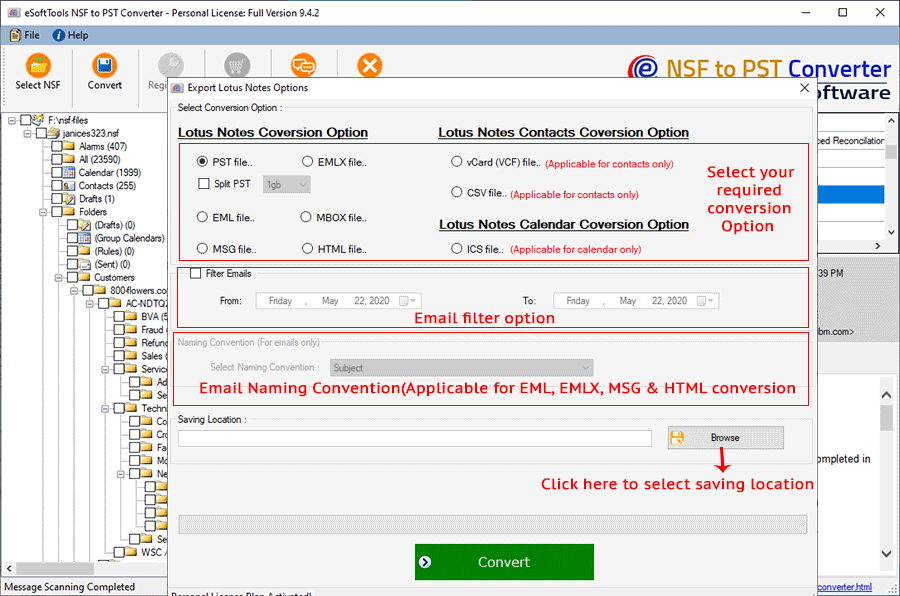
- Select the Export to PST option and proceed with the conversion.
- Browse the file location to save the converted PST file and click the convert button to start the conversion process.

- The software will take a few minutes to do the conversion and will prompt you with a confirmation dialogue.
Conclusion
Sometimes a user needs to open NSF files in Outlook. If a user tries to open the NSF file in Outlook directly, then Outlook denies it because the NSF file extension is not supported by Outlook. To solve this problem, we have written two methods in this blog- first, manually, and second, automatically. I hope this article is helpful and solves all your queries.


No Comments yet!