Now,adays email communication has increased, and many users want to shift from one email client to another. Users now want to use the email file format that many email clients support. MBOX is one of the most widely used file formats, and in this blog, we explain both manual and automated methods to convert Outlook PST to MBOX. It can easily help to know how to convert Email from Outlook PST to MBOX file directly.
What are PST and MBOX files?
PST (Personal Storage File) are Outlook files that store data such as email, contacts, calendars, notes, tasks, etc. These files are used for archiving and backup of Outlook files.
Many email clients such as Mozilla Thunderbird, Opera Mail, Apple Mail, and SeaMonkey support MBOX (Mailbox) files. These files store all emails in a concatenated format, meaning they save messages one after another in a single file.
Also Read:- How to Convert PST to MBOX Free
Why convert PST to MBOX?
- Compatibility – Many email clients such as Apple Mail, Mozilla Thunderbird, Opera Mail, and SeaMonkey support MBOX files, which makes it easier for users to access and manage them.
- Platform Migration – If you switch from Outlook to another email client that supports MBOX files, you need to convert your data accordingly.
- Backing Up- If you want to back up Outlook files then choosing MBOX files is a good option.
Methods to convert PST to MBOX
- Manual Method
- Automated Method
Manual Method
In the manual method, you have to import the PST file in the Mozilla Thunderbird and then export it to the MBOX file.
- Launch Mozilla Thunderbird in your system.
- Now go to the Tools option in the menu bar.
- Click on the Import option from the list.
- Now the list of options is opened in the Mozilla Thunderbird.
- Select the option Import from Outlook and click Continue.
- After a series of steps click on the Start Import button and Importing of the PST files will continue.
- Now install the ‘ImportExportTools NG’ add-on in the Thunderbird.
- Select the Folder Export(MBOX) option from the ImportExportTools NG drop-down menu.
- Give the destination where you want to save the resultant MBOX file and click OK to convert the PST file to MBOX.
Automated Method
In the automated method, we use the third-party software eSoftTools PST to MBOX converter software. In this software, we can easily convert PST files to MBOX files. You can load single and multiple PST files at a time in the software and it has an option to search PST files from your system. The PST file structure, formatting and data integrity are maintained during the conversion. In the preview panel, you can see the list of files and folders of PST files; therefore, you can easily review the data before conversion. After that, you can select the files and folders that you want to convert into MBOX files. The software provides an email filtering option; therefore, you can easily filter emails by date. To do this, you only need to mention the start date and end date of the emails.
You can convert PST files to MBOX files without installing MS Outlook; therefore, you do not need to depend on the Outlook application. This software can work in any Windows Operating System such as Windows 11, 10, 8.1, 8, 7, Vista, XP, and any previous versions. It converts PST to MBOX files that are supported by various email clients such as Apple Mail, Mozilla Thunderbird, Opera Mail, Sea Monkey, etc. In a few steps, you can convert PST to MBOX in this software.
- Download eSoftTools PST to MBOX Converter Software and install it.
- Launch the software into your computer and press the “Select PST” button and two options will be displayed.
- Select PST File– Choose this option to select the PST file from the known location of the local drives of your system.
- Search PST file-Search and select the PST files from the unknown location of your drive.
- Start Scanning and you can preview the inner contents of PST files and folders.
- Select the necessary mailbox folders of PST files for exporting them.
- Press the ‘Save PST’ button and select the ‘Export to MBOX’ radio button from the PST conversion options.
- Browse the location where you want to save the PST file to your computer.
- Choose the ‘Mail Filter’ option if you want to filter email (based on date).
- Click on the ‘Convert’ button and begin the process of PST to MBOX conversion process.
Conclusion
Now you know both manual and automated methods for conversion of PST to MBOX. The manual methods are complex and require technical knowledge for converting PST to MBOX whereas the automated method is easy to use and does not require technical knowledge. The graphical interface of the eSoftTools PST to MBOX converter is easy to use and any person can use it easily.
Steps to Convert Email From Outlook PST to MBOX
Step1: Download & Open the Software

Step2: Select PST file
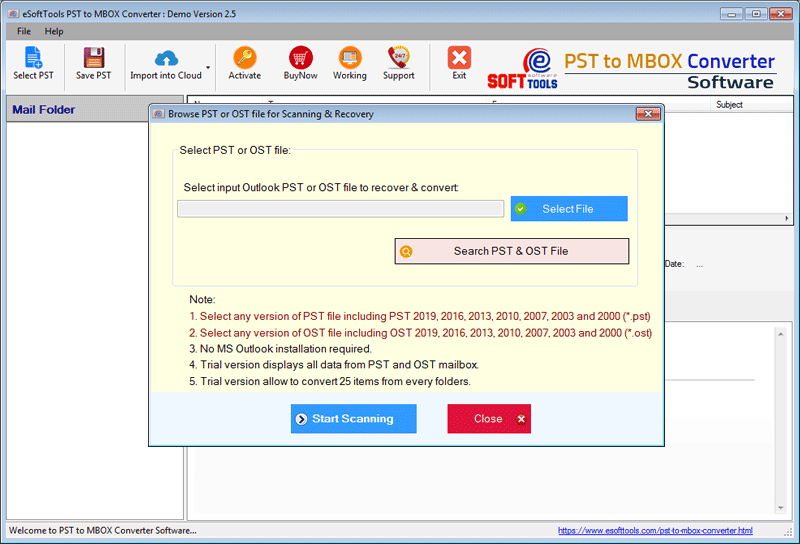
Step3: Start the scanning process
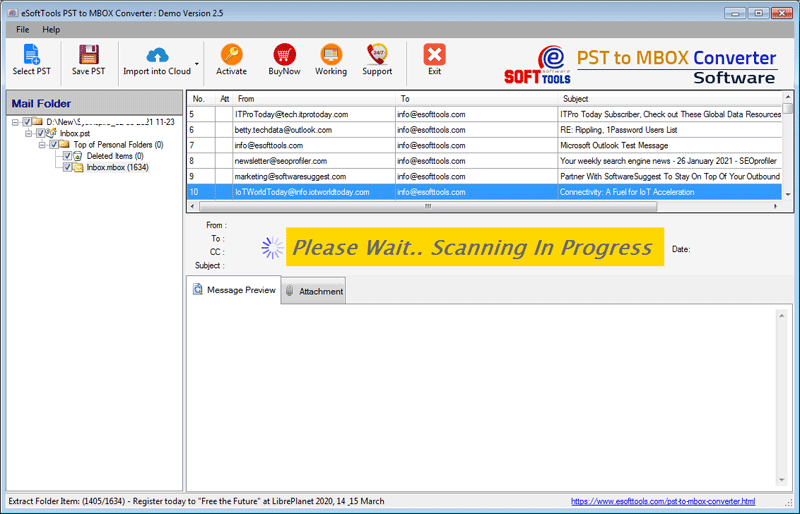
Step4: Get a preview of the entire items

Step5: Convert PST to MBOX, EML, EMLX, TGZ, ICS, vCard file format

Step6: Conversion Process Completed


No Comments yet!