Many companies that use Outlook email clients for communication need to have a backup of their emails. They can do this by exporting emails from Outlook to Excel, so they need to convert Outlook(.pst) to a CSV file format. Doing this is a complex task when you have multiple emails, but by using manual and automated methods, you can do this. In this blog, you will learn manual and automated methods for Export Multiple Emails from Outlook.
Methods to Export Emails from Outlook
- Manual Method
- Automated Method
Manual Method
In the manual method, you can export multiple emails from Outlook in CSV or Comma-Separated Values file format. The CSV file format is widely used and it is opened in spreadsheets in Microsoft Excel. All the data in the CSV file is stored in tabular format and by default Outlook lets you export the data in CSV file format. CSV files can be opened in Excel and the app that supports the CSV file format.
- Launch Outlook software on your system.
- Go to the ‘File menu’ and choose the ‘Open & Export’ option.
- After that, choose the ‘Import & Export’ option.
- Select the option ‘Import from another program’ and click the Next button.
- Select the option ‘Comma Separated Value’ and click the Next button.
- Browse the location of the CSV file and select the CSV file.
- Choose the option ‘Replace duplicates with items imported’ and click the Next button.
- Choose the destination where you want to save the file and click Next.
- Once the process is complete, click the Finish button.
Automated Method
In the automated method, we use the eSoftTools Outlook PST Recovery software. In this software, you can load single and multiple PST files at a time. You can convert the PST file into other file formats such as MBOX, MSG, EML, EMLX, HTML, vCard, and ICS, etc. It can repair corrupted PST files in just a few seconds.
It also provides the feature of splitting large PST files into smaller PST files. There is no requirement to install MS Outlook software on your system. It can work with all editions of the Windows Operating System, such as Windows 11, 10, 8.1, 8, 7, Vista, XP, and below editions. You can preview the inner contents of the PST files in the side panel of this software. It has a smart graphical interface similar to MS Outlook and is easy to use. In a few steps, you can convert and repair Outlook PST files.
Also Read:- How to Import and Export Emails From Outlook?
Steps to Export Multiple Emails from Outlook
- Download and launch PST recovery software on your system.
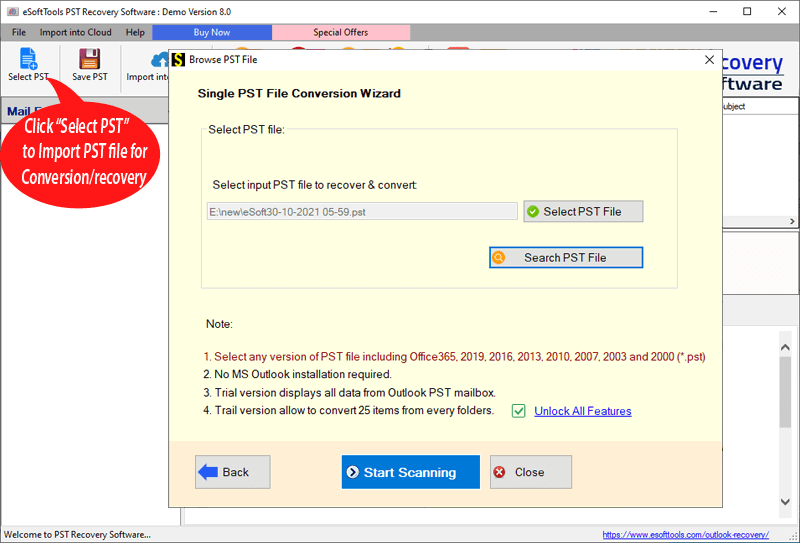
- Click on the PST button from the menu bar.

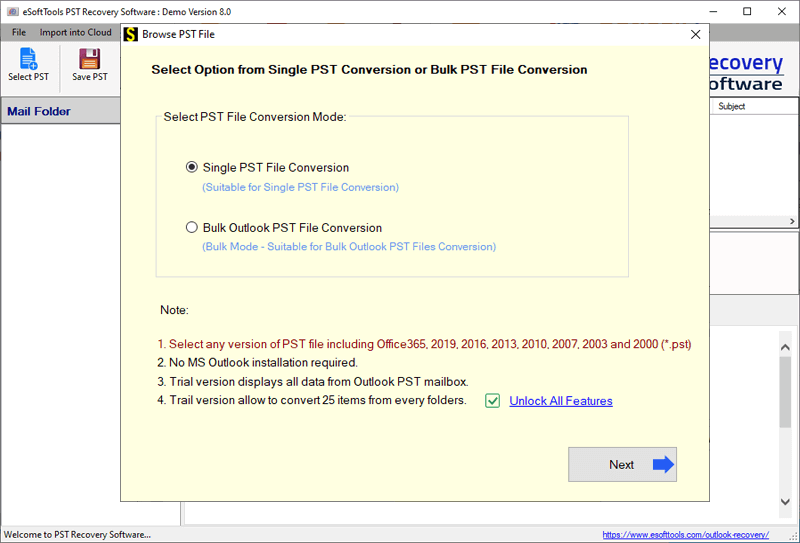
- Now choose the PST conversion mode.
- Single PST file conversion– You can load a single PST file in the software in this conversion mode.
- Bulk PST file conversion– You can load multiple PST files in the software in this conversion mode.
- Select the file and start the scanning process to load the PST file in the software.
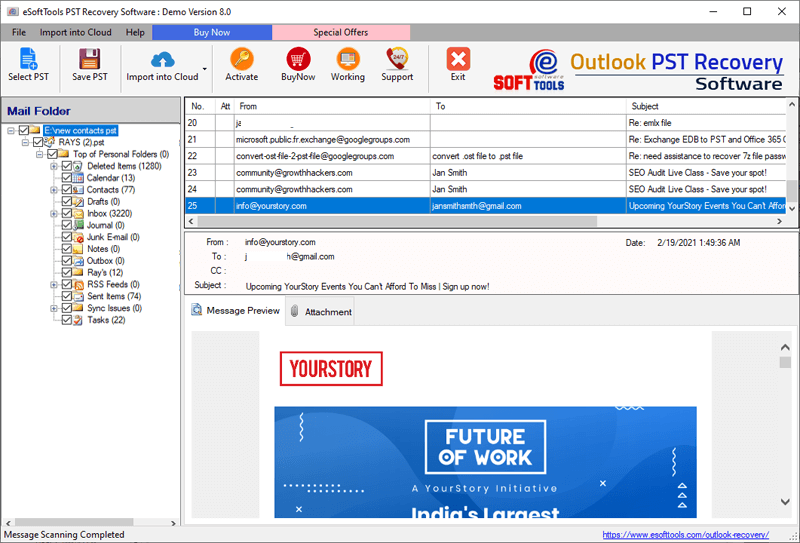
- Get the preview of files/folders of the PST file, select the files and folders that you want to convert, and press the save PST button.
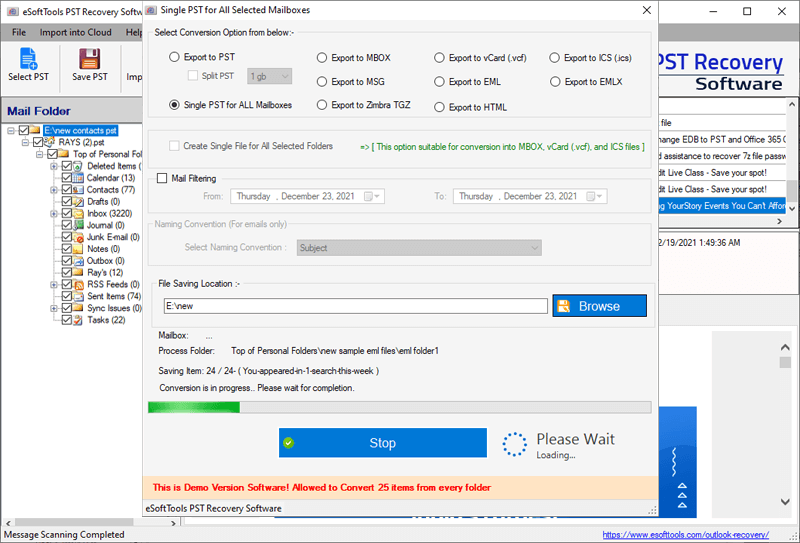
- In the next step software provides multiple file-saving formats such as PST, MBOX, MSG, EML, EMLX, vCard, ICS, and others. Choose the MBOX file option to convert the Outlook file into the Thunderbird format.

- Select the location to save the Output file and press the Convert button to start the recovery process.
Conclusion
Here we describe the manual and automated methods. You can use the manual method, but it is time-consuming and not 100% accurate. You require technical knowledge to implement the manual method. In the automated method with the help of eSoftTools Outlook PST Recovery software, you can extract all the emails from the mailbox into the New folder. The graphical interface of the software is so easy to use that any people without technical knowledge can easily use it.



No Comments yet!