In the busy schedule of life, everyone needs a planner to organise meetings, appointments, and other important data. Every email management application, like Microsoft Outlook, Apple Mail, and Google Calendar, provides a calendar feature. The email management application uses the ICS file format to provide a calendar feature. Sometimes, user needs to convert ICS files to CSV format, and to solve a user query on how to convert ICS to CSV format, we have written an automated method in this blog.
Overview
ICS stands for Internet Calendar Scheduling, and it is a calendar to manage meetings, appointments, conferences, and other important dates. This file format is easily shared, and one can easily open an ICS file in their email management application like Microsoft Outlook, Apple Mail, and Google Calendar.
CSV stands for comma-separated value, and it stores data in tabular format. It stores data in the form of rows, and each value is separated by a comma.
Reasons to convert ICS to CSV format
There are particular reasons to convert ICS files to CSV format, and some are listed below.
- When a user wants to take a backup of the ICS file, the user can take it in CSV format.
- If the user wants to use an ICS file in Excel and use its filter, ordering, and charts features, then the user can convert it to CSV format.
Automated method to convert ICS to CSV format
With the eSoftTools ICS Converter software, you can easily convert ICS files to CSV format. With a few clicks, this tool can convert ICS files to different file formats like PST, MSG, EML, HTML, NSF(Lotus Notes), MHTML, CSV(Excel File), PDF, etc. Moreover, you can preview calendar items in the ICS file in the preview panel before conversion.
Also Read:- Convert ICS to PST: Effortless Transfer iCalendar to Outlook
Key features
- Import the ICS file into the software in two different modes: “Folder mode” & “File mode”.
- Preview calendar items of the ICS file in the preview panel with all the related information.
- Easily add an ICS folder containing multiple ICS files and allow selection of the needed files for conversion.
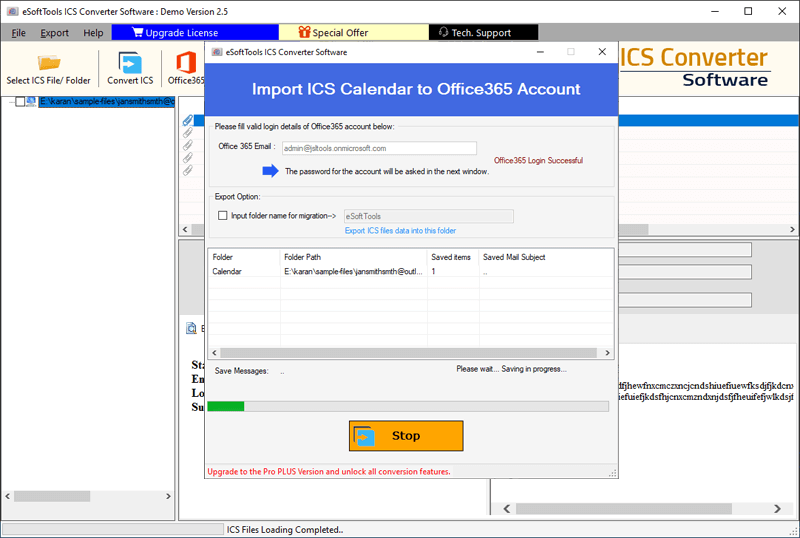
- Directly migrate data from ICS files containing calendar data items to an Office 365 account.
- Save the converted file at your desired location on your system.
- Convert ICS files to other file formats without the need for a third-party application.
- Have a user-friendly graphical interface that can be used by anyone.
- Works with all editions of the Windows operating system, like Windows 11, 10, 8.1, 8, 7 & below editions.
Step-by-step solution to convert ICS file to CSV
Download, install, and launch the eSoftTools ICS File Converter software on your system.

Press on Select ICS File/Folder on the above menu bar and select the file adding modes- “File mode” or “Folder mode”.

Click the Next button and preview the ICS files and folders in the preview panel inside the software.

Select the needed ICS files and folders, and click on the Convert ICS button on the above menu bar.

Next, choose the Export in CSV file conversion option and choose one option from the two options: Create a single CSV file for all calendar items or create a separate CSV file.

Browse the saving location to save the CSV file at your desired location on your PC.
Click the Convert button and start the ICS to CSV conversion.
Conclusion
In this informative guide, we explain the reasons and provide an automated method for converting ICS files to CSV format. If you want to test the software and check its working, then you can use the free demo version of the software. If you have any doubts, you can contact our support team, and they will solve your query.

No Comments yet!