Searching for a way to transfer emails between Office365 accounts? Read on to the end for the ideal solution. We will walk you through every step of migrate Office 365 Email to another Office 365 account. Let’s begin…
Overview
Office365 is a web-based version of Microsoft Office applications. Utilizing the Office365 cloud service, users are able to run Office apps directly in a web browser. The Office365 service also allows users to utilize Outlook, Excel, PowerPoint, and additional apps.
Numerous users utilize Outlook within an Office365 account for sending emails and managing other tasks such as calendars, to-do lists, and address books. A large number of businesses and individuals also operate two or more Office365 accounts at the same time.
Sometimes users face a situation where they need to move their Outlook 365 mailbox from one account to another.
Users face many difficulties when performing this task manually and are unable to achieve the expected results. As a result, users need a better method for migrating from Office365 to Office365.
Also Read:- How to Save/Export Office 365 Email to HTML files?
Instant Solution to migrate Office 365 Email to another Office 365 account
The eSoftTools IMAP Backup and Migration software enables users to swiftly transfer emails between a pair of Office365 accounts. This standalone application assists you in executing email migrations from one Office365 mailbox to another. Users can export emails from either their complete Office365 account or designated mail folders. This software is compatible with any Windows-based PC. It streamlines the migration procedure and yields superior outcomes with very little effort.
How to migrate Office 365 Email to another Office 365 account?
- Get started by downloading, installing, and launching the eSoftTools IMAP Migration software.
- Select the “Office365” option from the list of available webmail apps.
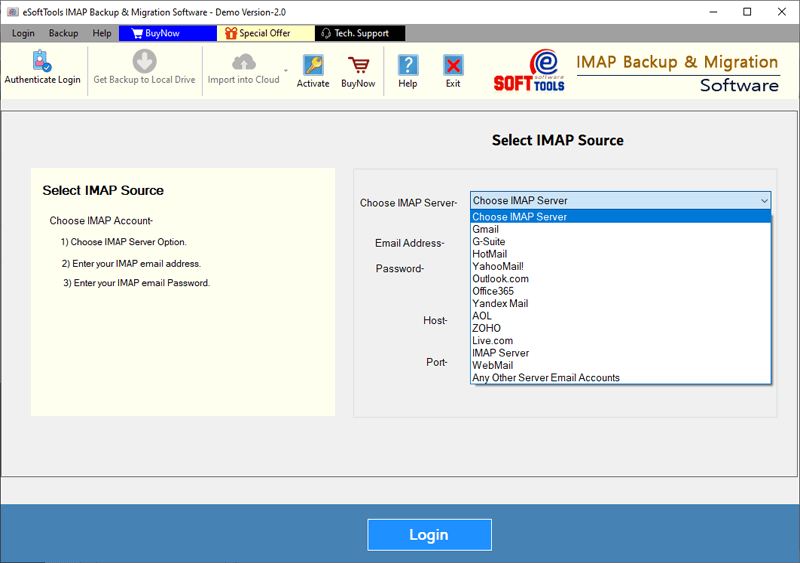
- Type your Office 365 email address and click Login.
- Log in to the software with your Office365 account and load all mailbox folders.

- Select the required Office365 account mail folders and click the Import to Cloud button.
- Choose the Import to Office365 option and click Next.

- Enter the email address of the Office365 account (to which you want to transfer the data).

- Select the folder naming option and apply the date-based mail filtering settings.
- To finish, click ‘Convert and migrate’ to transfer Office365 emails to another Office365 account.

Smart Features of eSoftTools Office365 Email migration software –
- Migrate emails directly from one Office365 mailbox to another Office365 mailbox.
- The migration process only requires an internet connection and Office365 account login details.
- Lists all mail folders in an Office365 account to allow selective exporting.
- It also lets you transfer Office365 emails to Gmail, Yahoo, Outlook.com, and any other IMAP-based cloud or webmail apps.
- Allows creating a distinct new folder to store the imported data.
- This provides filtering options to export emails from a specific date range from an Office 365 mailbox.
- It features a user-friendly graphical interface accessible to both technical and non-technical users alike.
- This is compatible with every version of Windows, such as Windows 11, 10, 8.1, 8, 7, XP, Vista, and other releases.
Conclusion
In this article, we’ve explained the best way to migrate Office 365 Email to another Office 365 account. Follow the steps above to migrate your Office365 email to another Office365 account. Using this method, complete the migration efficiently and securely. Before purchasing Office365 migration software, test its full capabilities using its demo version.
FAQ
Can I save IMAP emails to separate files using this tool?
Yes, besides saving mailbox folders, users will also find multiple file options for saving IMAP emails and attachments as individual files. Users can effortlessly save separate emails in file formats such as MSG, EML, EMLX, and HTML.
Is it possible to use this software to save IMAP emails as EMLX files to use with Apple Mail?
Yes, users will also get the option to save IMAP emails to EMLX files, along with other saving options. Users can easily save emails to separate EMLX files and access them through Apple Mail or Mac Mail on their macOS-based computers.
Does this software work on Windows 10?
Users can use this software to back up emails from their IMAP accounts on any Windows computer. This software runs smoothly on Windows 11, 10, 8.1, 8, 7, XP, Vista, and other versions.

No Comments yet!