Want to move your Office 365 account emails to Thunderbird? If so, make sure to read this blog post through to the end. In this post, we’ll show you the steps to export emails from Office 365 into your Thunderbird profile.
Overview
Nowadays, desktop app users are turning to cloud- and web-based applications. Microsoft Office 365 is one of the most popular and advanced cloud-based services. A large number of users use this service for a variety of office tasks.
Office365 enables users to access all MS Office applications via a web browser. Applications such as MS Word, Excel, PowerPoint, and Outlook are all accessible in Office365.
From anywhere in the world and on any device, users can easily access their Outlook 365 accounts. Offering numerous benefits, Outlook 365 has earned widespread popularity and user trust.
Office365/Outlook 365 allows users to store profile data in the cloud. However, this functionality occasionally causes difficulties. To overcome this, users prefer migrating their Office365 emails to a Thunderbird profile.
Also Read:- How do I export Office 365 to a PST file?
Why users move Office365 emails to Thunderbird Profiles
- An internet connection is required for users to see their Office365 account emails. Thunderbird, however, provides the ability to view emails offline.
- It is common to accidentally delete emails from an Office 365 account. Because of this, users like to back up their Office 365 emails and save them in their Thunderbird profile.
Here are the main reasons users look to move their Office365 emails over to Thunderbird.
Smart Solution to Export Emails from Office 365 to Thunderbird profile
eSoftTools Office 365 Backup software is the best choice for users who want to export Office 365 emails to a Thunderbird profile. This intelligent tool is designed for anyone who needs to back up their Office 365 account emails. It can extract emails from an Office 365 account with complete information and save them to the user’s local drive. This tool can easily export emails from Office 365 directly to a Thunderbird profile. This tool quickly exports selected folders or entire folders from an Office 365 account. Additionally, this software automatically detects the default location of the Thunderbird profile’s mail folder to save Office 365 emails.
How to Export Emails from Office 365 to Thunderbird profile?
- Install and run the eSoftTools Office 365 Backup software on your Windows computer, and proceed with the steps outlined below:
- Open the software and type in your Office365 email address.

- Enter your Office365 account email address again on the next screen.

- Enter your Office365 account password and log in to the software.

- Load all mail folders in your account and choose the necessary folder.

- After you select the folder, choose “Save to Thunderbird” from the list of save options.

- The software automatically finds and selects the Thunderbird profile location.
- Then, configure and apply the mail filter and naming scheme settings.

- At the end, click the Save Backup button and initiate the migration of Office365 emails to the Thunderbird profile.
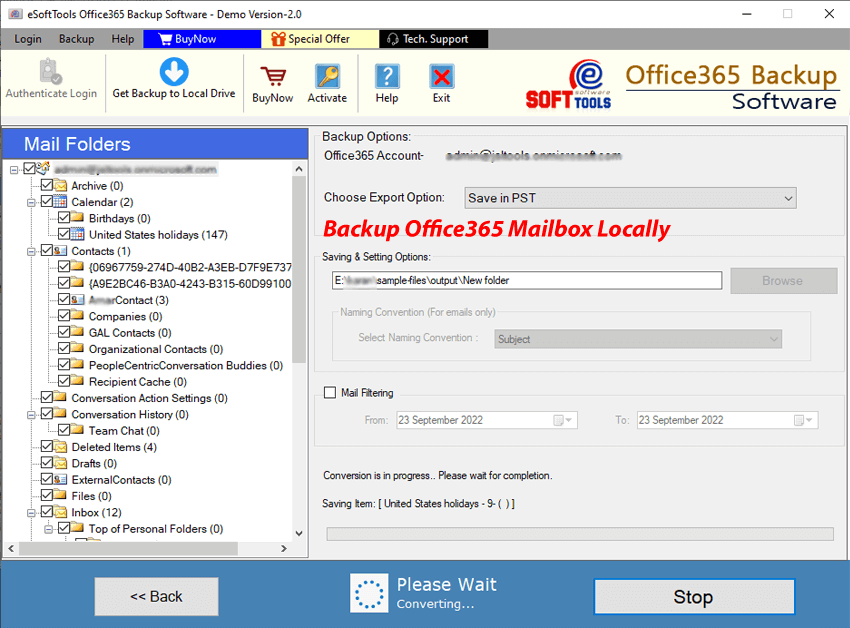
Advanced Features of eSoftTools Office 365 Backup Software
- Export emails from Office 365 accounts directly to Thunderbird profiles.
- There is a feature to export emails from selected folders of an Office 365 mailbox.
- Apart from Thunderbird, this software also provides more than 9 other file types to save Office365 emails.
- Convert and save user emails into EML, EMLX, MSG, HTML, MHTML, MBOX, MSG, and PDF formats.
- Export all Office365 email details, including To, BCC, Subject, CC, message body, hyperlinks, images, and attachments.
- Thunderbird automatically detects the storage location to keep Office 365 emails safe.
- It provides users with the facility to export emails of specific dates, along with an email filtering option.
It is compatible with all versions of the Windows operating system, such as Windows 11, 10, 8.1, 8, 7, XP, Vista, and earlier versions.
Conclusion
There are many reasons why people want to Export Emails from Office 365 to Thunderbird profile. In this article, we’ve explained the best way to do this easily. By following the steps above, you can download all Office365 emails to your Thunderbird profile. For a quick demo, try the demo version of eSoftTools Office Backup software and experience all its features for free.

No Comments yet!