Do you have calendar data in an Excel file and want to open it in email clients such as Microsoft Outlook, Google Calendar, or Apple Calendar? If so, then you don’t need to worry. In this blog, we have explained an automated method on how to convert Excel files to ICS Calendar files.
Overview
If you are in the habit of using email readers, then you already know about ICS files. ICS files are used to synchronise calendar data with various applications.
Converting Excel files to ICS can be helpful if you have calendar data like tasks, appointments, and other data in an Excel file and want to use it in email readers like Microsoft Outlook, Google Calendar, or Apple Calendar.
There is no direct method to convert Excel files to ICS files, so in this article, we have described an automated method to do so.
Reasons to convert Excel files to ICS Calendar files
Compatibility: ICS files are standard calendar files and supported by many email readers.
Event reminders and Notifications: When you keep your calendar data in an Excel file, it doesn’t update you with reminders and notifications, and ICS files keep you updated of upcoming events with reminders and Notifications.
Ease in Event Management: Converting Excel files to ICS Calendar files has advantages when you use ICS files in email clients. They offer various advanced features like recurring events, time-zone settings, update reminders, task completion, and progress status.
Automated method to convert Excel files to ICS Calendar files
With eSoftTools Excel to ICS Converter Software, you can easily convert Excel XLSX, XLS, XLSM, XLA, and CSV files with all calendar events and their associated information to ICS files. With a few clicks and simple steps, you can smartly and efficiently convert Excel files to ICS files. Moreover, it helps you to convert Excel files to other file formats like MSG, new PST, and existing PST.
Also Read:- How to Import Contacts from Excel to Outlook?
Key features
- Upload all Excel files into the software and preview all calendar items in the preview panel.
- Have an option of selecting Excel sheets and can extract selected calendar items from that sheet.
- Can auto-map or manually map calendar fields as per your preference.
- Extract calendar items with associated field items- Subject, Date, Time, Status, Description, etc.
- Capable of naming converted ICS files based on subject and auto-numbering.
- Save ICS files to any desired location on your computer.
- Supports and is compatible with Excel files with new and older versions (up to 2021).
- Consistent with all Windows Operating systems like Windows 11, 1o, 8.1, 8 & below versions.
Steps to convert Excel files to ICS files
- Download and launch eSoftTools Excel to ICS Converter Software on your computer.
- Click Add Excel file on the menu bar and browse for Excel files that are to be added to the software.

- Preview Excel sheets’ data in the preview panel in the software.
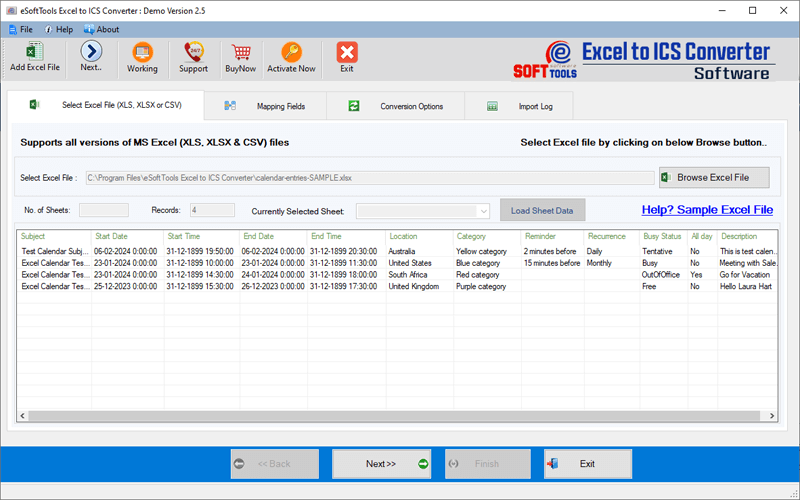
- Click the Next button and map Excel calendar fields with ICS file calendar fields.
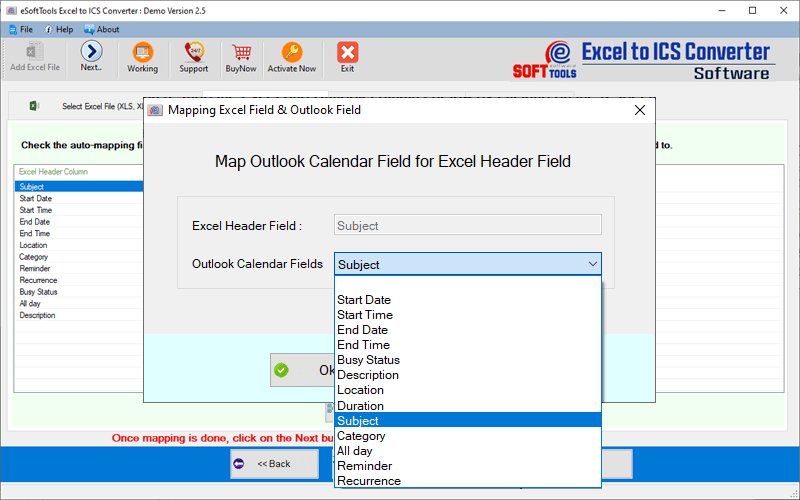
- After mapping, click Next and choose ICS file export options.
- Apply, naming convention feature and save the ICS file on your computer.

- At last, click the Next button and start converting the Excel calendar sheet to an ICS file.

Conclusion
You can use manual methods to convert Excel files to ICS files, but they are complicated and need technical expertise. However, if you follow the automated method step by step, then your problem of converting Excel files to ICS files is solved with a few clicks.

No Comments yet!