Many users want to convert MBOX to EML files for various reasons, but they don’t know how. Don’t worry—this blog describes an automated method for doing so. With the automated method, you can export MBOX to EML with all mailboxes, attachments, attributes and components.
MBOX vs EML – Overview
MBOX file stores all the emails with attachments of the mailbox in a single file and all the new emails are appended at the end of the file. This file format is supported by many email clients like Apple Mail, Mozilla Thunderbird, Eudora, Sea Monkey, Entourage, etc.
EML file uses those users who don’t have an email client installed in their system. If we compare it with MBOX, EML files are also supported by many email clients. EML files store a single email in one file.
Reasons to convert MBOX to EML files
Compatibility: Many email clients like MS Outlook, Entourage, Mozilla Thunderbird, and Apple Mail support EML files. If you want to open an MBOX file to an EML-supported email client, then you have to convert it to EML.
Easy sharing: EML files store a single email message therefore due to their small size these files are easily share while MBOX files store all the emails in one file so they are difficult to share.
Email Management: EML files store a single email message so it is easy to manage a single file. After conversion, you can easily share, forward, and read EML files and use them for backup purposes.
Also Read: How to convert MBOX files to PST free?
Best Automated method to convert MBOX to EML file
The best-automated method to convert MBOX to EML file is eSoftTools MBOX converter software. With this software, you can easily and efficiently convert MBOX to EML files in a few clicks. This splendid and flawless software allows one to convert MBOX files to EML and other file formats like MSG, HTML, PST, NSF, EMLX, etc and migrate MBOX files to cloud-based applications like Office 365, Yahoo Mail, Gmail, Outlook.com and IMAP accounts.
Key features
- You can load single and multiple MBOX files in this software at a time and you can also choose to auto-detect MBOX files from your system.
- Preview the files and folders of the MBOX file in the preview panel before conversion.
- It also provides the feature of email filtering through which you can filter emails according to date only you have to give the starting date and ending date.
- Allows the conversion of MBOX files to other file formats like PST, MSG, EML, EMLX, NSF, HTML, etc.
- Allows to add MBOX files of any size without any size restrictions.
- Provides the feature of a Naming convention by which you can save emails with unique names based on Subject, Date and From.
Steps of the conversion
- Download and install eSoftTools MBOX Converter software in your system.
- Open and click the ADD File/ Folder button of the software at the start-up screen.

- Choose from the three options to load MBOX files into the software
- Single MBOX file: You can add a single MBOX file to the software.
- Multiple MBOX files: You can load multiple MBOX files in the software.
- Auto-detect MBOX file: The software will automatically detect MBOX files inside your system and load MBOX files in the software.
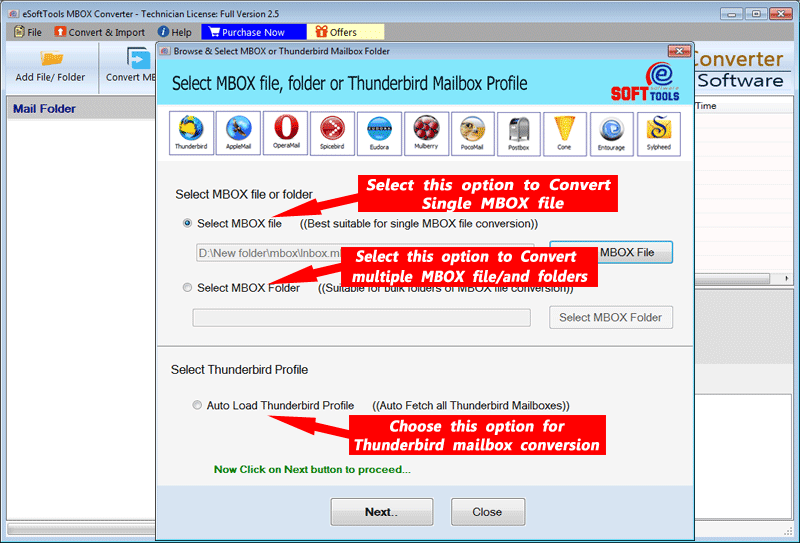
- After loading MBOX files in the software, you can click the Next button.
- In the preview panel, you can view MBOX files/folders and select the MBOX files/folders that needs to migrate.

- Click on the Convert MBOX button and the next conversion window will appear.
- Choose EML format from the list of options by clicking the radio button.
- Apply Mail filter, Naming convention and saving location options according to your need.
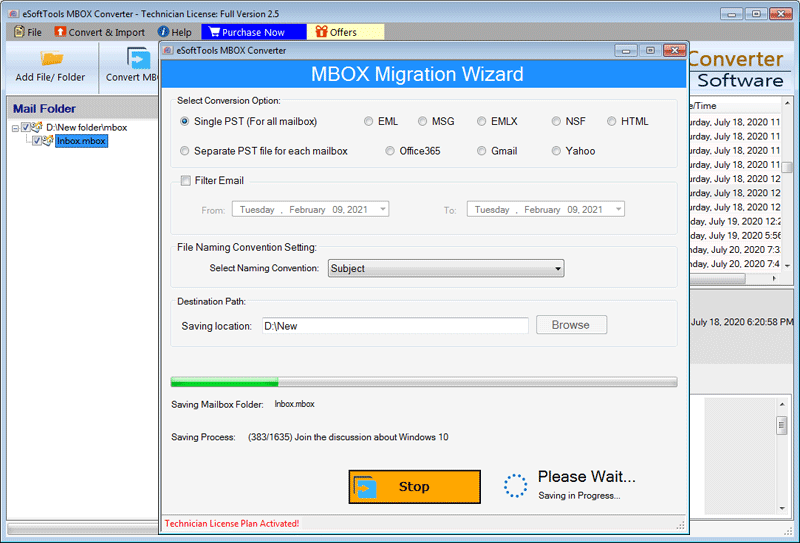
- At last click on the Convert button and start the conversion process of MBOX to EML.
Conclusion
In this blog, we have explained the reasons and automated methods to convert MBOX to an EML file. In the demo version, you can convert 25 files from each folder of the MBOX file to an EML file and if you get the desired result then you can purchase the license.



No Comments yet!