Are you looking to export Office 365 emails, contacts, calendars, etc, to other email clients like Microsoft Outlook? If yes, then you are on the right page. In this blog, we have explained an automated method to export and back up Office 365 to a PST file.
Overview
Office 365, now known as Microsoft 365, is a subscription-based suite provided by Microsoft. It is a cloud-based service that provides Microsoft applications like Excel, Word, PowerPoint, Outlook, and OneNote, along with advanced security features.
A PST file is a file format of Microsoft Outlook that is used to store data like emails, contacts, calendars, tasks, notes, etc. This file format is used for backup of Microsoft Outlook data.
Reasons to export Office 365 to a PST file
Backup purposes: If you want to have a backup of Office 365 data, then users can back up in PST files.
Switching email clients: If you are looking to switch to an email client that supports PST files, then you can easily switch after exporting to a PST file.
Offline access: To access emails in Office 365, you need an internet connection; on the other hand, you can access emails offline in Microsoft Outlook.
Automated method to export Office 365 to PST
The most powerful and reliable tool to export Office 365 to PST is eSoftTools Office 365 Backup Software. This tool backs up emails, contacts, calendars, tasks, etc, of Office 365 to PST, EML, MSG, HTML, MHTML, EMLX( Apple Mac OSX file), MBOX (Folder-wise MBOX file), MBOX (Single MBOX file), PDF, and Thunderbird. It preserves email formatting and structuring during the Office 365 backup process.
Key features
- Save and export Office 365 to a PST file with all items maintaining folder hierarchy.
- Export Office 365 mailbox to MBOX in two different options- Single MBOX and Separate MBOX.
- Imports Office 365 mailbox directly to Thunderbird’s default storage location.
- Preview all Office 365 mailbox files & folders in the preview panel.
- Have a helpful feature of filtering emails that filters emails according to Date.
- Save and back up the Office 365 mailbox at your desired location on your Windows system in your chosen file format.
- Have a simple and easy-to-use graphical interface that can be used by anybody.
- Consistent with all editions of the Windows operating system, like Windows 11, 10, 8.1, 8, 7 & below editions.
Also Read:- How to Save Office365 Emails to Hard Drive? Complete Guide
Steps to export Office 365 to PST
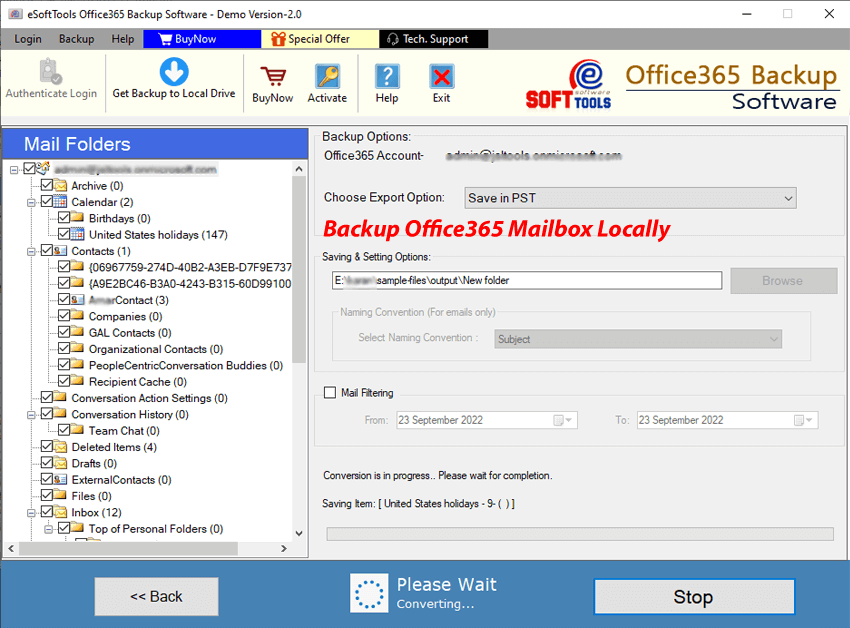
- Download, install, and launch eSoftTools Office 365 backup software on your Windows system.
- Enter your Office 365 credentials, like email address and Password, and click the Next button.

- Load all Office 365 mailbox files and folders and preview them in the side panel in a tree structure.

- Choose the Export option as Save in PST from the drop-down menu.

- Browse the saving location on your computer where you want to save the PST file.
- Apply the email filter and naming convention feature according to your requirements.

- Click the Save Backup button, and the export process of Office 365 to PST will be initiated.
Conclusion
In this blog, we have explained the reasons and an automated method to export Office 365 to the PST file format. If you want to export in bulk, then use the automated method. There are manual methods also available, but they methods are complex and require technical expertise. However automated method is simple and error-free and exports without any data loss.

No Comments yet!