Are you tired of reading emails in a cluttered manner in Outlook and want to read emails individually? If yes, then read this blog you will learn manual and automated methods to export Outlook emails to EML files
PST and EML Overview
PST file stores Outlook data like emails, calendars, contacts, tasks and journals. These files are the property of Outlook and do not open in any other email client.
EML files can open in many email clients such as Gmail, Yahoo Mail, Windows Live Mail, and Apple Mail. The EML files stores single emails with attachments.
Why export Outlook Emails to EML files?
- Compatibility: PST files only open in Outlook whereas EML file is supported by multiple email clients. If you want to read PST files in multiple email clients then you have to convert them into EML file format.
- Free Vs Paid: To open PST files in Outlook you have to purchase Outlook software whereas to open EML files you can use a free email client such as Mozilla Thunderbird.
- No Risk of Data Loss: PST files store complete data such as emails, tasks, calendars, contacts, and journals in one file. If the PST file gets corrupted due to any reason whole data will be lost on the other hand EML file stores a single email if the EML file gets corrupted only a single file is lost.
- Easy sharable: EML files are easily sharable because they hold a single email message whereas PST files are not easily sharable because they hold large data.
Methods to export Outlook emails to EML files
- Manual Method
- Automated Method
Manual Method 1
In the manual method, we first import PST files in the Mozilla Thunderbird and then save the files in EML file format.
Step 1: Importing PST files into the Thunderbird
- Launch Mozilla Thunderbird in your system.
- Now go to the Tools option in the menu bar.
- Click on the Import option from the list.
- Now the list of options is opened in the Mozilla Thunderbird.
- Select the option Import from Outlook and click Continue.
- After a series of steps click on the Start Import button and Importing of the PST files will continue.
- After completion click the Finish button.
Step 2: Exporting Thunderbird to EML
- Run Mozilla Thunderbird in your System.
- Open and select the files (Ctrl+A to select all files) you want to export as EML files.
- Right-click on the files and choose the option Save As.
- Browse the destination path and click the Save button.
- Now open the folder, files will be saved as EML files.
Manual Method 2 using Outlook
Drag and Drop Method
- Open Outlook in your System.
- Open the file in Outlook and simply drag and drop the emails you want to convert to EML files on your desktop.
- The emails will now be saved with the .eml extension.
Also Read: Export Contacts From PST File to VCF Format Without Outlook
Automated Method to export Outlook emails to EML files
In the automated method, we use third-party software eSoftTools PST Outlook Recovery software. With a few clicks, you can convert PST files to EML format and other file formats like MBOX, MSG, EMLX, HTML, vCard, ICS, Thunderbird, CSV, Zimbra(.tgz), etc. Moreover, with this tool you can easily export PST files to cloud-based applications like Gmail, Yahoo Mail, Outlook 365 and IMAP servers.
Key features
- Load single and multiple PST files in the software at a time.
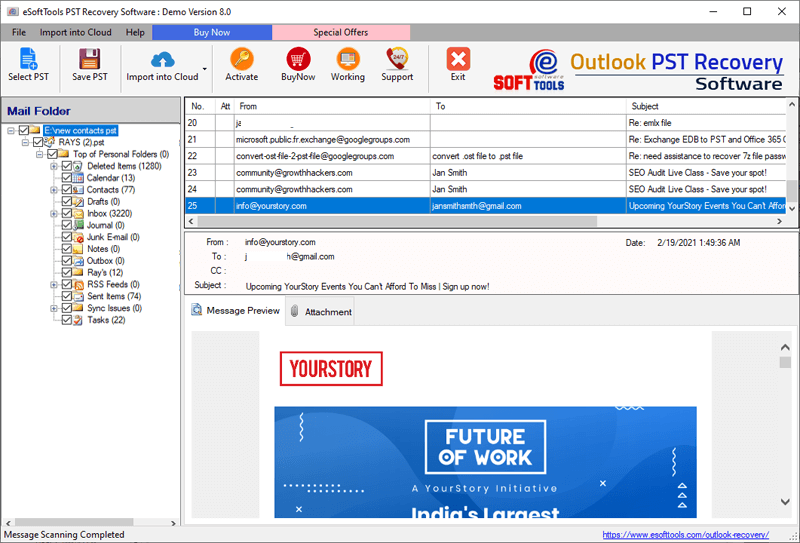
- In the preview panel, you can see the inner files & folders of the PST file .
- Easily recovers corrupted PST files.
- Convert PST files to other file formats such as MBOX, MSG, EML, EMLX, HTML, vCard, ICS, etc.
- Allows to filter emails according to date, only you have to mention the starting date and ending date.
- Even work even without the installation of MS Outlook in your system.
- Compatible with all editions of the Windows Operating System such as Windows 11, 10, 8, 7, 6, Vista, XP, and even older versions.
- The user-friendly graphical interface of this software is so easy to use that even non-technical people can use it easily.
Steps to convert PST to EML file format.
- Download and launch PST Recovery software in your system.
- Click on the PST button from the menu bar.
- Now choose the PST conversion mode.
- Single PST file conversion– You can load a single PST file in the software in this conversion mode.
- Bulk PST file conversion– You can load multiple PST files in the software in this conversion mode.

- Select the file and start the scanning process to load the PST file in the software.
- Get the preview of files/folders of the PST file, select the files and folders that you want to convert and press the save PST button.
- In the next step software provides multiple file-saving formats such as PST, MBOX, MSG, EML, EMLX, vCard, ICS and others. Choose the EML file option to convert the Outlook file to an EML file.

- Select the location to save the Output file and press the Convert button to start the recovery process.
Conclusion
This blog covers all the methods to convert PST files to EML files. You can follow automated methods. Manual methods are lengthy and time-consuming; on the other hand you can use the automated method which converts the PST files to EML files in a few steps and in a few seconds.



No Comments yet!