Sometimes users have a need and want to export PST contacts to vCard. Working professionals want to save Outlook PST contacts to vCard format to have contacts on other devices like smartphones, laptops, tablets, etc and to transfer contacts to other email clients in case of switching. In this blog, we have written an automated method to export contacts from PST file to vCard (VCF) format without Outlook.
Overview
PST is an Outlook file format that is used to save emails, contacts, calendars, tasks, notes, etc. It is used in case of backing up Outlook data and if the user wants to transfer Outlook mailbox data from one computer to another computer.
vCard (VCF) is a file format that is used to store contact information such as first name, last name, addresses, email addresses, phone numbers, etc. This file format can be used to save contacts in different email clients, smartphones, laptops and on multiple devices
Automated method to export contacts from PST file to VCF format without Outlook
The best and most reliable method to export contacts from PST file to VCF format without Outlook is to use eSoftTools Outlook PST recovery software. This tool enables users to convert Outlook PST contacts to vCard(VCF) easily and efficiently. Moreover, this tool allows the conversion of PST files to various other file formats like EML, EMLX, MSG, MBOX, NSF, HTML, Zimbra(.tgz) etc and allows migration of PST files to different cloud-based applications like Gmail, Yahoo Mail, Office 365, Outlook.com and IMAP servers.
Key features
- Capable of converting PST files into multiple file formats such as MBOX, MSG, EML, EMLX, HTML, etc.
- In the preview panel, you can view files and folders of the PST file and select the files and folders that you want to convert into other file formats.
- Migrate PST file data to web-based email clients such as Gmail, Yahoo Mail, Office 365, and Outlook.com account.
- Allows the splitting of large-size PST files into small-size PST files with the split feature.
- Enables to work with all Outlook editions up to 2019 (32/64 bit).
- Compatible with all editions of the Windows Operating System such as Windows 11, 10, 9, 8.1, 8, 7, Vista, XP and older versions.
- Repair corrupt PST files and recover data items such as emails, calendars and contacts.
Step-by-step approach to export contacts from PST file to vCard(VCF) format without Outlook
- Download and launch eSoftTools Outlook PST recovery software in your system.
- Click on the Select PST button from the menu bar.

- Now Select the PST file.
- Select PST file – You can select and load PST file in the software.
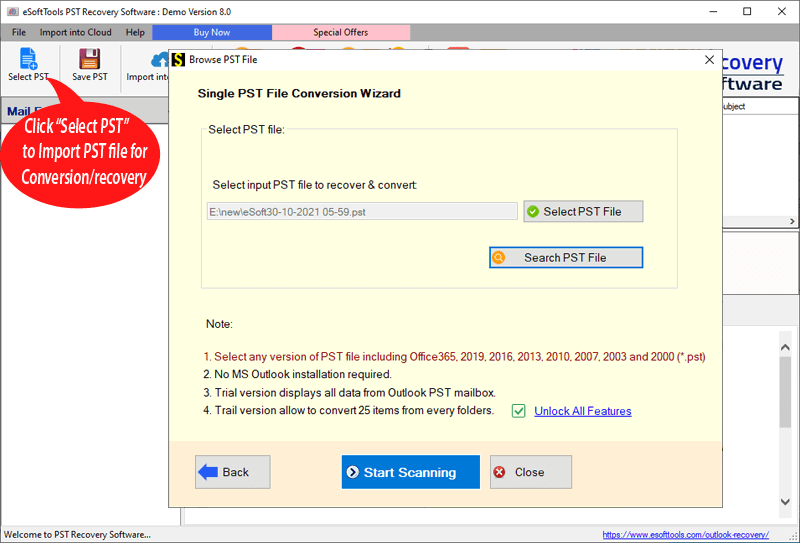
- Select the file and click the Start Scanning button to start the scanning process.
- Get the preview of files/folders of the PST file, and select the PST contacts files and folders that you want to convert.
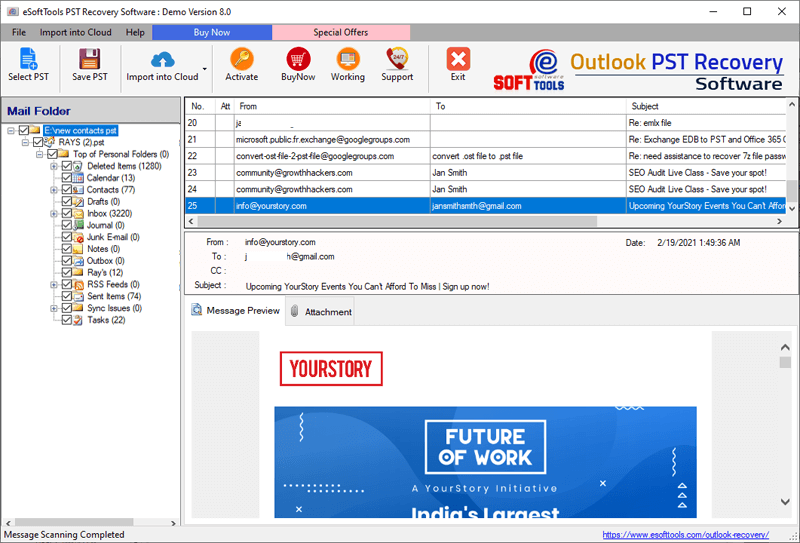
- Click on the Save PST button on the above menu bar and the Outlook PST conversion window will open.
- Select the conversion option Export to vCard(VCF) from the list of options.
- You can apply the mail filtering, Naming convention and saving location feature.

- Click the Convert button to start the conversion of the PST contacts to vCard(VCF).
Conclusion
We have explained an automated method in this blog and this is the professional method used by working professionals. There are manual methods available but they are not applicable in bulk conversion. The use of the tool allows you to export number of Outlook PST contacts to vCard(VCF) format without any restriction and maintain the data formatting and data structuring during conversion

No Comments yet!