Do you want to import MSG files into your Google Workspace account? If so, this blog will guide you through the process of efficiently importing MSG files from Outlook or MDaemon into Google Workspace.
Overview
MSG is a file format utilized by Microsoft Outlook and MDaemon applications for storing user data. Both MS Outlook and MDaemon are desktop applications that use MSG files to store data locally.
These files can store data like email messages, calendar events, contacts, etc. A further benefit of the MSG file type is that it enables users to save each item individually.
Alternatively, Google Workspace, which used to be called G Suite, is a comprehensive software suite provided by Google. Users gain access to several cloud-based productivity tools, including Gmail, Google Drive, Google Docs, Google Sheets, and so on.
Also Read:- How to Import MSG Files to Office 365 Account?
Why Import MSG files into Google Workspace?
- Organizations that are switching from Microsoft Outlook to Google Workspace will need to migrate their existing email data, contacts, and calendar events from MSG files.
- Users save necessary data in MSG format on their local devices. Importing these files into Google Workspace allows them to easily organize all their information in one place.
- Transferring MSG files to Google Workspace allows users to access all their data from different devices and locations seamlessly.
Quick method to Import MSG files into Google Workspace
By importing MSG files into Google Workspace, users can easily move from Microsoft Outlook to Google’s productivity suite. The top solution for this job is the eSoftTools MSG to Gmail converter software. This automated program lets you easily transfer unlimited MSG files to Gmail and Google Workspace in a single operation. The transfer is totally safe and guarantees 100% accurate results.
How to Import MSG files into Google Workspace?
- Download eSoftTools MSG to Gmail Converter software, install it on your Windows computer, and follow the steps below: –
- Launch the data migration tool from MSG to Gmail and click on ‘Select MSG file/folder’.

- Now choose the method to add the MSG file from the available methods: Select the MSG folder, select the MSG files.

- Import all the selected MSG files/folders into the software and press the Next button.
- Open the Outlook items in every MSG file and pick the folders/files you need.

- Select the MSG file/folder, then hit the Import MSG to Gmail button.
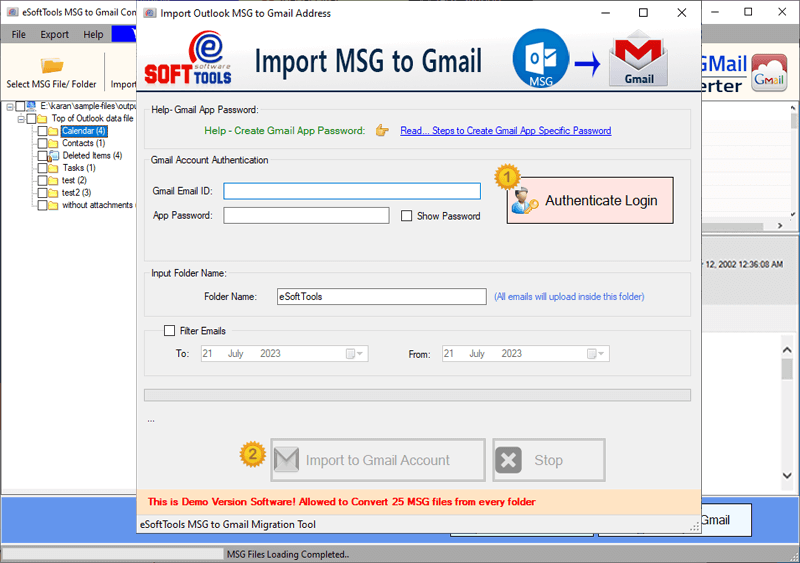
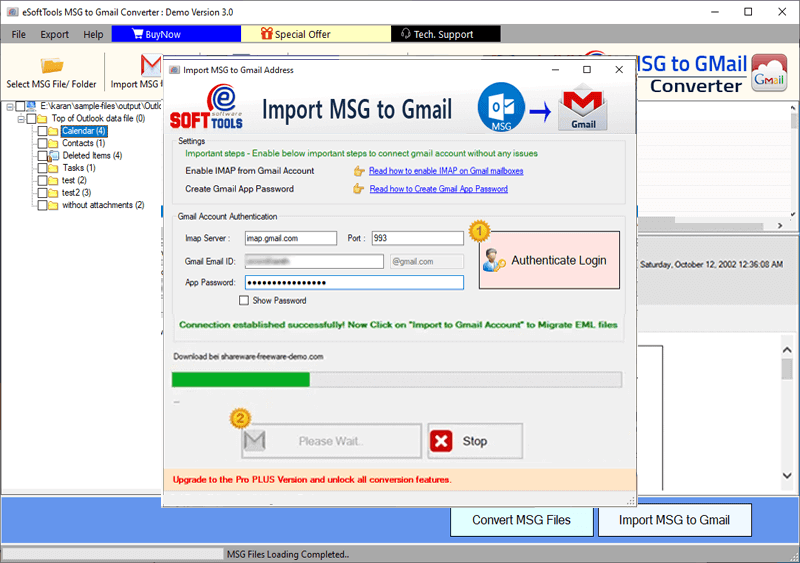
- Enter your Google Workspace account email address and app password, then click the Authenticate Login button.
- Apply other settings after account authentication – Input folders and mail filters.
- Finally, click “Import to Gmail Account” and begin the transfer process.
Smart features of MSG to Google Workspace Migration Software: –
- Migrate MSG files directly to Gmail/Google Workspace without any issues.
- It allows adding MSG files in two different ways – file-wise and folder-wise.
- Migrate MSG files in bulk and upload several MSG files simultaneously.
- Save Outlook MSG files with every data item—emails, contacts, calendar events, and more.
- Complete the migration process while maintaining complete information and showing zero errors.
Users can export emails from MSG files for specific dates using the mail filter option. - Allow users to create a new folder in their Google Workspace/Gmail account to store imported MSG file data.
- In addition to this, it provides the option to convert MSG files to PST, EML, EMLX, HTML, and MBOX file formats. (This feature is only available with Corporate and Technician licenses.)
- Its simple and innovative GUI is easily accessible to everyone, from beginners to experienced users.
- It is available in all versions of Windows – Windows 11, 10, 8.1, 8, 7, Vista, XP, and older versions.
Conclusion
Some users find it necessary to migrate from MS Outlook to Google Workspace. This change helps improve workflow within an organization. During the migration, users need to import MSG files into Google Workspace. You can easily transfer MSG files to Google Workspace by following the step-by-step process described in the article above. Use eSoftTools MSG to Gmail Converter for this migration.
FAQ
Does it allow users to export MSG files with Outlook contacts and calendar items?
Users are able to quickly move all items from MSG files to an Outlook mailbox, including emails, contacts, calendars, journals, tasks, and notes.
How many MSG file users can be migrated to Gmail simultaneously with the help of this tool?
Yes, users can import an unlimited number of MSG files to a Gmail/Google Workspace account without any data loss.
Is it possible to export large MSG files to a Gmail account using this tool?
While using this software, the user can upload an unlimited number of MSG files of any size to the Gmail account without any limitation.
Will this tool work to migrate MSG to Gmail without depending on the Outlook application?
No, when using this software, there is no need to open Outlook or install MS Outlook on the computer to export an MSG file to Gmail.

No Comments yet!