Looking for the best way to extract and save Office 365 emails as HTML files? If yes, read this article to the end. Here, we will show you how to save or export Office 365 emails to HTML format.
Overview
Microsoft offers Office 365 as a subscription-based cloud service. Having an Office 365 account gives users online access to all Office suite applications, including Word, Excel, and Outlook.
Outlook is also available in the Office365 service, which we know as Outlook 365. Using this service, users can access their configured email accounts in Outlook. Users can access their Office365 email accounts directly from any device using a web browser.
Microsoft offers cloud storage facilities, enabling Office365 users to store profile data on cloud servers. It also secures the user’s Office365 email profile data on Microsoft cloud servers.
Also Read: How to Save Office365 Emails to Hard Drive? Complete Guide
Why Save/Export Office 365 Email to HTML files?
- Because Office365 is a cloud-based service, it requires an internet connection to access account data. Users can access Office365 email locally through a web browser by saving emails to HTML files.
- Many users want to export Office365 emails to HTML files. This allows them to save each Office365 email individually.
- As a universal file type, HTML can be accessed on various devices and apps. Plus, their small size makes HTML files a great option for data sharing.
A reliable solution to Save/Export Office 365 Email to HTML files
Use eSoftTools Office365 Backup software to download Office365 emails as HTML files. This tool exports all emails directly from the Office365 mailbox while preserving original formatting and properties. Through a simple process, users can extract emails along with attachments from their Office365 account. The software enables users to download and save emails, including attachments and attributes like recipient, BCC, CC, subject, date, and message body.
How to Save/Export Office 365 Email to HTML files?
- Launch the Office365 Backup software on your Windows computer.
- Enter the email address of your Office365 account and click Login.

- Enter all necessary Office365 account details on the next screen to log in.

- Load all Office365 mailbox folders and choose the necessary folder from the list.

- Once you have selected the folder, choose the “Save as HTML” option from the export options.

- Implement email filtering based on date and naming conventions.

- At the end, click the “Save Backup” button and export the Office 365 emails to HTML files.
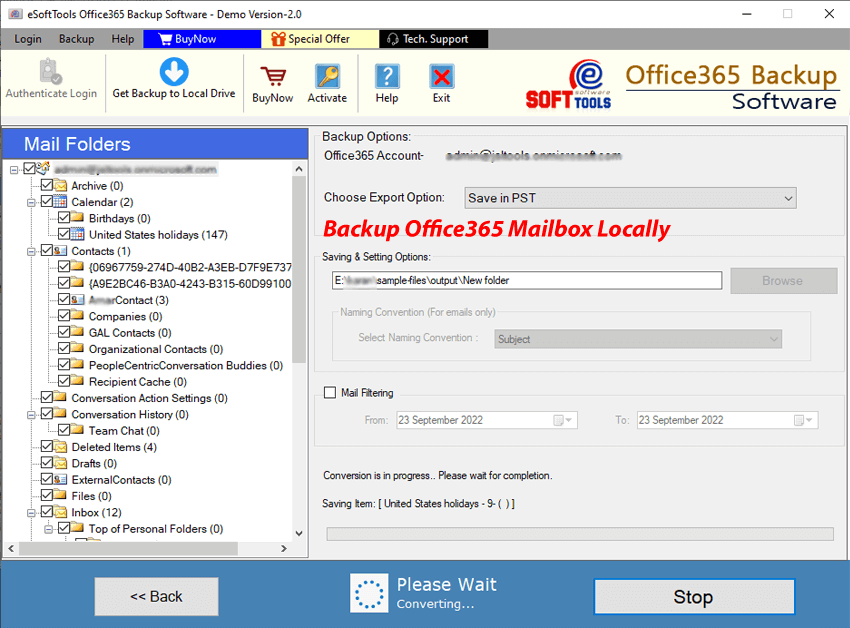
Key Features of eSoftTools Office365 Backup software: –
- In just a few clicks, download emails and other mailbox items from Office 365 mailboxes.
- Batch download emails from several Office365 account folders.
- View a preview of required folders to choose and export data from specific folders.
- Convert emails to HTML and access more than 9 additional formats such as PST, PDF, MHTML, MBOX, EML, EMLX, and MSG.
- You can export emails from a specific period, including the option to filter emails by date.
- Use the Naming method option to give the resulting HTML files a custom name.
- Manually choose the location on your drive to save the downloaded HTML files.
- Due to its simple graphical interface, the software can be accessed even without prior knowledge.
- It works on all versions of the Windows operating system – 11, 10, 7, 8.1, 8, Vista, XP and below.
Conclusion
There are several reasons why users might need to Save/Export Office 365 Email to HTML files. eSoftTools Office365 Backup Software makes this process simple. Back up your Office365 emails to a local drive in HTML format using this smart tool.

No Comments yet!