Are you looking for a solution on how to delete emails from an IMAP Server? If yes, then you are in the right place. This blog explains an automated method to delete emails from an IMAP Server to free up space.
User Query: I have been using a professional email ID for the past nine years. Now, I want to configure my email ID with a desktop email client. But before doing so, I want to delete my old emails from the IMAP server. Do you have a method for doing so?
Kevin L. Griffith
Why do users delete emails from the server?
Every user deletes emails from the IMAP server’s inbox folder to free up storage space. However, when we delete emails from the inbox folder, they are not permanently deleted. The user can find those emails in the deleted items folder. If the user wants to delete those emails permanently, they must delete them from the deleted files folder.
Also Read: How to Migrate Gmail to IMAP Server?
Smart and automated method to delete emails from the server
The smart and automated method to delete emails from the server is to use the eSoftTools Email Eraser tool. This tool quickly and easily deletes emails from an IMAP server account. With a few clicks, you can delete all the emails from the selected folders of the IMAP server account in bulk. This application deletes emails based on 5 different modes- Delete all emails with attachments, Delete only emails with attachments, Delete only unread emails, Delete Folder (including emails with attachments), and Delete social media notification emails.
Key features
- Use the direct and automated method to delete or remove unnecessary emails from an IMAP-based email account.
- Delete emails from selective single and multiple folders of IMAP mail account at a time.
- Provide the feature of filtering emails with the Date Range( From and To) and delete IMAP emails according to filtered emails.
- Remove emails by specifying any option of fields of email address such as To, From and Subject.
- Remove emails from IMAP-based mail applications like Gmail, Yahoo Mail, ZOHO, AOL, Yandex, etc.
- Has a clean and user-friendly graphical interface that removes emails from an IMAP email account easily.
- Design to install and run on Windows Operating System like Windows 11, 10, 8.1, 8, 7 & below editions.
Steps to delete & remove IMAP emails with eSoftTools Email Eraser tool
- Download and install the eSoftTools Email Eraser tool in your system.
- Open the software and choose the IMAP-based email application from the drop-down list.
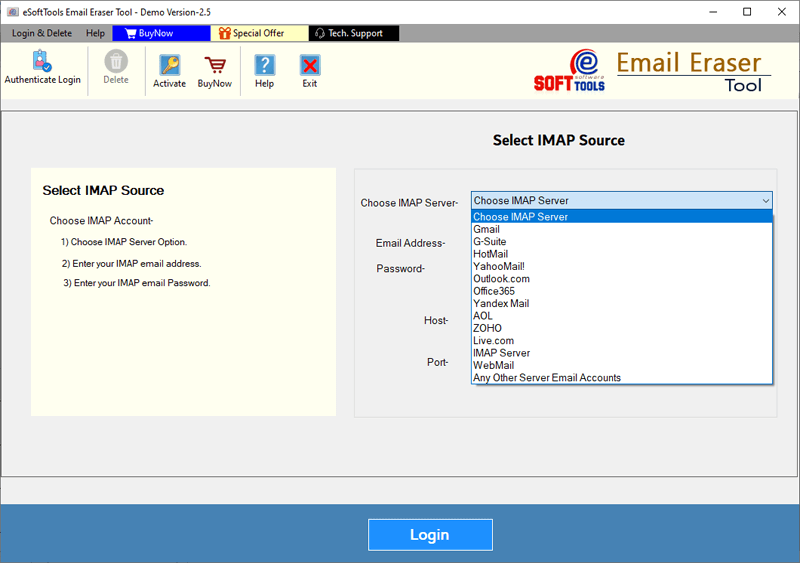
- Enter the account credentials of the IMAP-based email application like email address, password, port no and hostname.
- Click the Login button, load all the files and folders of your IMAP-based email account, and select the files and folders from which emails should be removed.

- Apply Mail filtering and select one of the deletion modes.

- At last, click the Delete button and start deleting emails from the IMAP email account.
Conclusion
In this blog, we have explained an automated method to delete emails permanently from an IMAP email account. Deleting emails can be a bulky task, but the tool explained above will help you in deleting unnecessary emails quickly and easily. This tool simplifies the process of deleting unnecessary emails from an IMAP-based email account.

No Comments yet!