Microsoft Outlook is a popular email client with many additional features. But Outlook is not free from every problem. One such problem is repeated emails that occur due to errors and failures. In this blog, we have written an automated method to delete/remove duplicate MSG files.
What are MSG files?
MS Outlook stores data items like emails, contacts, calendars, tasks, notes, etc in the local drive of the user’s computer. Outlook stores individual items like email, contact, calendar, task, and notes in the MSG format. Sometimes due to errors in Outlook, duplicate MSG files are created. These duplicate files create many problems for the users, so they must be deleted
Reasons to delete/Remove duplicate MSG files
The reasons to delete/remove duplicate MSG files depend on the users, but here we have explained some of them.
- Having duplicate MSG files uses up excessive storage space that needs to be freed, and by deleting duplicate MSG files, excessive storage space is freed.
- Unnecessary duplicate MSG files affect the overall performance of Outlook and slow it down. Users can speed up MS Outlook by removing duplicate MSG files.
- Having duplicate MSG files creates problems in finding necessary information in MSG files. Removing/deleting duplicate MSG files helps reduce time in the search process of MSG files.
Also Read: How to Import MSG to IMAP Server?
The best automated Solution to delete/remove duplicate MSG files
The best-automated solution to delete/remove duplicate MSG files is the eSoftTools MSG duplicate remover tool. This is the most reliable and advanced software that deletes/removes duplicate MSG files with a few clicks. This splendid software is coded with the finest algorithm that simplifies the task of removing duplicate MSG files.
Key features
- Easily search and remove duplicate MSG files containing identical items from your drive.
- Search MSG duplicate files within the MSG folders.
- Additionally, find and delete MSG duplicate files across MSG folders.
- Preview all MSG files data items like emails, contacts, calendars, tasks, notes, etc within the preview panel.
- Allows you to filter duplicate emails according to Date by specifying Date in the Date Range ( From and To).
- Provides the feature of a Naming convention by which you can save emails with unique names based on Subject, date and from.
- After deleting the duplicate MSG files, save the new file to your desired location on your computer.
- The graphical interface of the software is easy-to-use that non-technical people can use it easily.
- Compatible with all editions of Windows Operating System like Windows 11, 10, 8.1, 8, 7 and below editions.
Step-by-step approach delete/Remove duplicate MSG file
- Download and install eSoftTools MSG duplicate Remover software in your system.
- Open the software and click the Select MSG file/folder button to add MSG files to the software.
- Choose any one of the options to add MSG files to the software- Select MSG file or Select MSG folder.
- Press the Next button and load MSG files/folders into the software.

- Preview the MSG files/folders in the preview panel and select the files/folders from which duplicates are to be removed.

- Click the Remove Duplicate MSG button and the next window will appear.
- Choose any one of the options from the two options
- Search and remove duplicate MSG files within the folder
- Search and remove duplicate MSG files across the folder.
- Apply saving location, mail filter and naming convention settings.
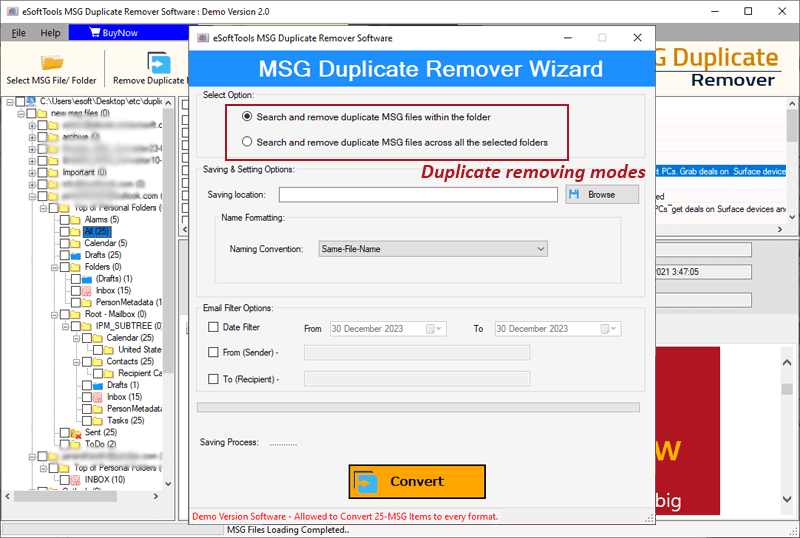
- At the last click, convert and delete the duplicate Outlook MSG file.
Conclusion
Duplicate MSG files arise due to various reasons and create a lot of problems. Therefore user has no option but to remove/delete duplicate MSG files and folders. In this blog, we have explained an automated method that allows you to delete/remove duplicate MSG files/folders with a few clicks.

No Comments yet!