Here in this blog, we have explained the method to export contacts from Outlook to Gmail. In this blog, you will learn the automated method of exporting contacts from Outlook to Gmail.
As we all know, Outlook and Gmail are popular email clients. Sometimes, a situation arises where the user needs to export Outlook contacts to Gmail. Our technical team receives many queries about this, so we decided to describe the automated method for exporting contacts from Outlook to Gmail.
Reasons to export Outlook contacts to Gmail
- Cross-Platform access: Gmail and its services can be accessed on any device such as laptops, smartphones, tablets and desktop computers with the help of the Internet.
- Other Services: Google provides not only access to emails but other services also like Drive, Sheets, Docs, Chat, calendar, contacts etc.
- Advanced Tools: Google provides advanced tools to manage and organize contacts.
- Convenience: Provides a single platform for managing business and personal contacts.
How to export contacts from Outlook to Gmail Account? In Bulk
eSoftTools Outlook PST recovery software is the best option for exporting contacts from Outlook to Gmail. This software directly converts the Outlook contacts to vCard which can be directly imported into a Gmail account. It will convert the Outlook contacts to a vCard file without any data loss and with 100% accuracy.
Benefits and features of using PST recovery software
- Allows to convert PST files into multiple file formats such as MBOX, MSG, EML, EMLX, HTML, PDF, etc.
- In the preview panel, you can view files and folders of the PST file and select the files and folders that you want to convert into other file formats.
- Easily migrates PST file data to web-based email clients such as Gmail, Yahoo Mail, Office 365, and Outlook.com account.
- It allows the splitting of large-size PST files into small-size PST files with the split feature.
- Can work with all Outlook editions up to 2019.
- Compatible with all editions of the Windows Operating System such as Windows 11, 10, 9, 8.1, 8, 7, Vista, XP and older versions.
- Repair corrupt PST files and recover items such as emails, calendars and contacts.
How can I export contacts from Outlook to Gmail Account?
Step1: Export Outlook Contacts to vCard file
- Download and launch eSoftTools Outlook PST recovery software in your system.
- Click on the Select PST button from the menu bar.
- Now choose the PST conversion mode.
- Single PST file conversion– You can load a single PST file in the software in this conversion mode.
- Bulk PST file conversion– You can load multiple PST files in the software in this conversion mode.
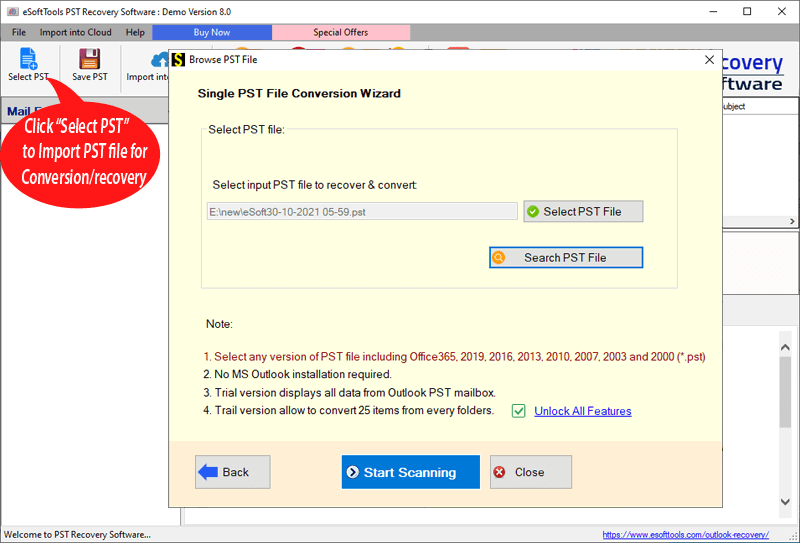
- Select the file and click the Next button to start the scanning process.
- Get the preview of all files/folders of the PST file, and select the contacts files/ folders to export to vCard files.
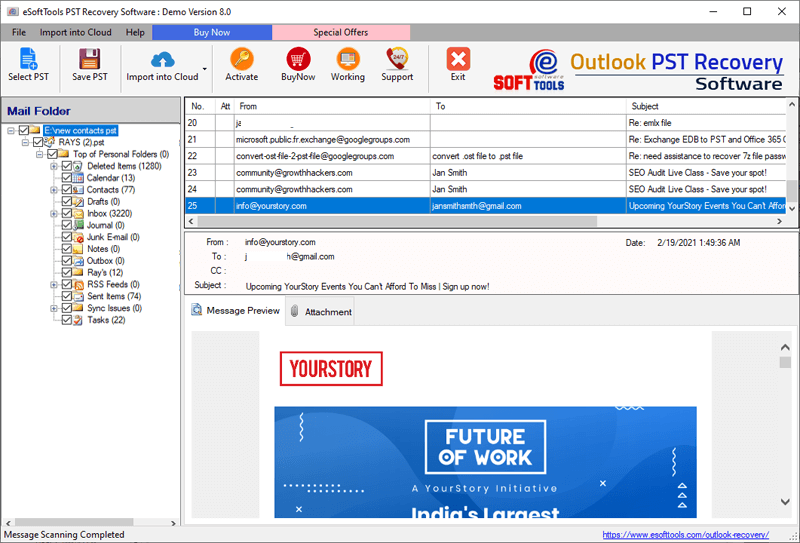
- On the top panel, click the Save PST and select the Export to vCard option from the conversion option.
- You can apply the mail filtering feature if you want to apply.
- Browse the location to save the output file on your computer.

- Click the Convert button to start exporting contacts from the PST file to the vCard file format.
Step 2: Import the vCard file to Gmail
- Login to your Gmail account and click on the 3X3 grid to open list of Google Services.
- Now click on the Google Contacts option.
- Here you have to choose the Import option.
- Click on the Select file option to open the Converted VCard(VCF) file from your computer.
Conclusion
Contacts play a crucial role in both personal and professional life. As it helps to share information and schedule meetings in real life. In this blog, we have written an automated method on how to export contacts from Outlook to a Gmail account. This method is 100% accurate and does the export of contacts in bulk.

No Comments yet!