Office 365 allows users to access their mailboxes from anywhere and anytime via the internet without any data security issues. It also provides other tools like Word, Excel, PowerPoint, and Outlook. Due to this, many users are migrating from desktop email clients to Office 365. In this blog, we have explained an automated method for export emails from MBOX files to Office 365.
Overview
Microsoft 365( Office 365) is a subscription-based suite that offers a variety of tools like Word, Excel, PowerPoint, Outlook, etc. It is a cloud-based application that can be accessed anywhere and on multiple devices like laptops, smartphones, tablets, and computers via the Internet.
Microsoft 365 features, along with added tools, compel users to shift from email clients to cloud-based applications. Shifting from the MBOX email client to Office 365 is not only shifting from one interface to another but also shifting of database also included. For database shifting, you have to migrate your MBOX mailbox data containing emails, contacts, calendars, tasks, etc, to Office 365. The migration of the MBOX database can be done using automated software, which is mentioned below.
Smart Solution to export emails from MBOX to Office 365
The smart solution to export emails from MBOX to Office 365 is to use eSoftTools MBOX converter software. With the help of this software, you can migrate MBOX mailbox data to Office 365 easily and effortlessly. With just a few clicks, you can migrate MBOX data to Office 365 without any data loss and formatting issues.
Read Also:- How to Open MBOX file in Chrome Web Browser?
Key features of MBOX converter
- Users can export emails from MBOX to Office 365 in just a few clicks.
- You can load single and multiple MBOX files in this software at a time, and you can also choose to auto-detect MBOX files from your system.
- Enables previewing the files and folders of the MBOX file in the preview panel.
- Provides the feature of email filtering through which you can filter emails according to date only you have to give the starting date and ending date.
- Migration of MBOX files to cloud-based applications like Gmail, Yahoo Mail, Office 365, etc.
- Converts MBOX files to other different file formats like EML, EMLX, MSG, NSF, HTML, and PST.
- Allows to add MBOX files of any size without any size restrictions.
Step by Step approach to Export emails from MBOX to Office 365
- Download and install eSoftTools MBOX Converter software in your system.
- Open and click the ADD File/ Folder button of the software at the start-up screen.

- Choose from the three options to load MBOX files into the software
- Single MBOX file: You can add a single MBOX file to the software.
- Multiple MBOX files: You can load multiple MBOX files in the software.
- Auto-detect MBOX file: The software will automatically detect MBOX files inside your system and load MBOX files in the software.
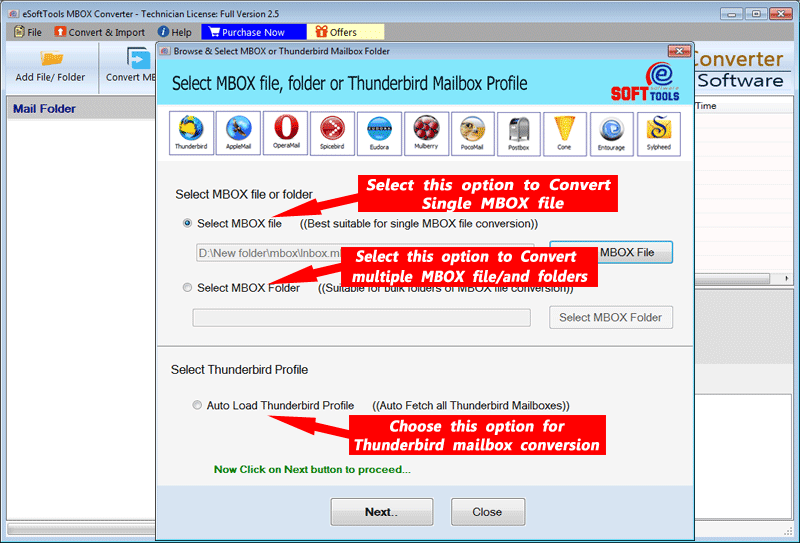
- After loading MBOX files in the software, you can click the Next button.
- In the preview panel, you can view MBOX files/folders and select the MBOX files/folders to be migrated.
- Click on the Import to Cloud button and select Import toOffice 365 from the list of options.

- Now enter Office 365 account credentials details like email address and password and click the Authenticate Login button.
- After login, you can choose the Mail filter to filter emails according to the Date with the Date Range( From and To).
- At last click on the Convert button and start the migration process will be started.

Conclusion
Converting mailbox data is important when users migrate from one email client to another. Manual methods are also available to export emails from MBOX to Office 365, but they are complex and require technical expertise. With this professional software, you can complete the migration process with a few clicks and without technical expertise.

No Comments yet!