Do you want to extract attachments from EML files but do not know how to do it? Well, it is a straightforward method to retrieve attachments from the emails. You can read the manual and automated methods to download attachments from the EML files.
What is an EML file and its attachments?
EML also known as Electronic Mail is a popular file format used by many email clients such as Gmail, Windows Live Mail, Yahoo Mail, etc. The EML file sometimes contains attachments such as PDF documents, images, videos etc and sometimes needs to download them separately. In the following blog, we have written manual and automated methods to download attachments of EML files separately.
Why extract attachments from EML files?
- Users can access the documents, images and videos separately.
- Extraction of EML attachments can help in freeing up storage space.
- Sharing and forwarding of attachments without forwarding the entire email.
- Backup of attachments can be made easy and can be used for future purposes.
Methods to extract EML files
- Manual Method
- Automated Method
Manual Method
- Download and Run the Thunderbird in your system.
- Click on the File option in the menu bar and then click the New >>Folder option.
- Drag and Drop the EML files in the New Folder.
- Open the email from which you want to extract the attachment.
- Click on the attachment icon and click on the browse path.
- Click the Save button to extract the attachment from the EML file.
Automated Method
In the automated method, we use eSoftTools EML Attachment Extractor software to extract the attachments from the EML files. This software can extract the attachments of email clients such as Apple Mail, Gmail, Yahoo Mail, Windows Live Mail, etc.
Key Features
- In this software, you can extract the attachments of multiple EML files such as PDF, Zip, Doc, XLS, PPT, etc.
- Save the extracted attachment to the desired location on your system.
- Easily filter attachments according to their extension and you have to give the extension of the attachments and all attachments related to it are extracted.
- Provides a feature of the naming convention in which extracted attachments are named according to Subject, Date and from function.
- With the date filter option, you can filter attachments according to Date.
- In the preview panel, you can see the EML files before the extraction process begins.
Also Read: How to Extract Attachments From MBOX File?
Steps to Extract Attachments from EML files
- Download and install eSoftTools EML Attachment Extractor Software in your system.
- Click on the Select EML folder button on the menu bar of the software.
- From the newly opened window click on the Select EML folder button, choose the EML folder containing EML files and click the Next button.

- Load all the EML files and folders and get a preview of them in the preview panel.
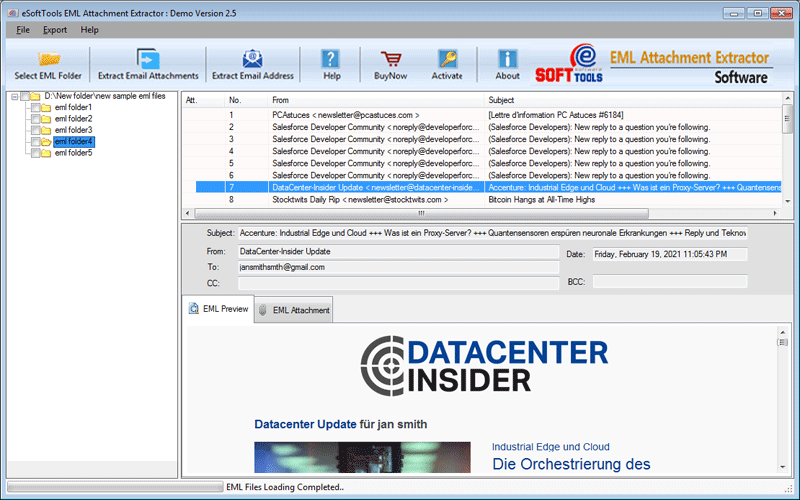
- Select the required EML files and click on the Extract Email Attachment button or Extract Email Address button from the menu bar.
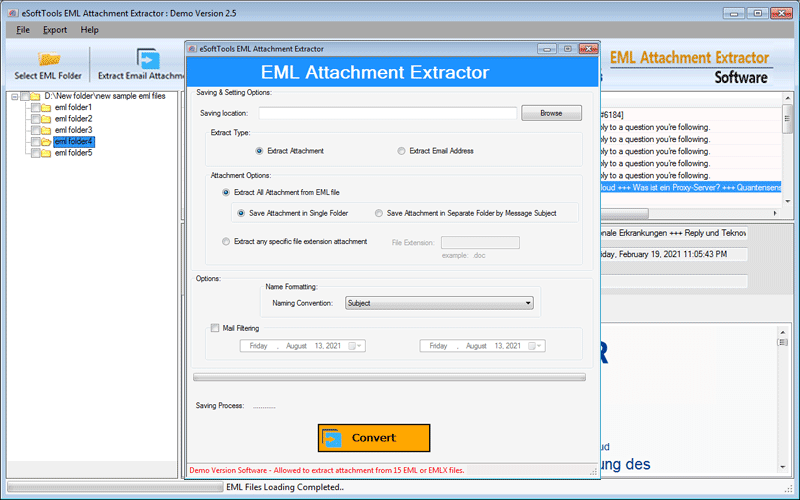
- Select the destination path to save the EML attachments.
- Apply mail filtering and naming convention options as per your need.
- Click on the convert button and start the attachment extraction process.

Conclusion
You can extract attachments of EML files with the manual method but they have limitations and are not 100% accurate whereas automated methods are fast and 100 % accurate. Experts and professionals use the automated method to extract attachments from the EML files.

No Comments yet!