Are you looking to export Lotus Notes contacts to CSV format? If so, you are on the right page. In this blog, we have written an automated method on how to export Lotus Notes Contacts to CSV format.
Overview
Lotus Notes is an email client developed by IBM and now maintained by HCL that maintains emails, contacts, calendars, tasks, notes, etc in the NSF files.
CSV files are text-based database files that store data in a record, and each value is separated by a comma.
However, Lotus Notes has a direct option to export Lotus Notes data to a CSV file, but it will not transfer data completely and is time-consuming and error-prone. Lotus Notes stores contacts in the names.nsf file.
Reasons to export Lotus Notes contacts to a CSV file
- Simplified Data Management: By exporting Lotus Notes contacts to CSV files, you have a large contact list that is easy to work with.
- Compatibility: CSV files can be used in spreadsheet software like MS Excel, Google Sheets and Outlook.
- Data backup & Archiving: Lotus Notes contacts can be backed up using CSV files and can be used in case of data loss or corruption.
- Email Client Migration: If you are switching from Lotus Notes email client to Outlook, then you can migrate contacts to Outlook by converting Lotus Notes contacts to CSV file.
- Smaller file size: CSV files have a smaller file size than any other file format.
Also Read: How to Convert Lotus Notes Address Book to Outlook?
Automated solution to export Lotus Notes contacts to a CSV file
With eSoftTools NSF to PST Converter software, you can easily export Lotus Notes Contacts to CSV format. With this software, you can convert NSF files to other file formats like EML, EMLX, PST, MSG, MBOX, HTML, vCard(for contacts), and ICS (for calendars), Zimbra (.tgz), etc. Moreover, you can migrate NSF files to cloud applications like Gmail, Office 365 and Yahoo.
Key features
- Perform NSF file conversion in bulk at a single time.
- Export all the data items in Lotus Notes( HCL Notes), such as emails, contacts, calendars, tasks, and notes.
- Has a user-friendly interface that can be used by non-technical people.
- Moreover, it allows you to preview files and folders in the preview panel.
- Additionally, it maintains the data structure and formatting during conversion and migration.
- It easily works with Lotus Notes versions 10.0.1, 9.0.1, 9.0, 8.5, 8.0.2, 7.0, 6.5, and 6.0.
- Preserves the NSF files and folders structure and formatting during conversion and migration.
Step-by-Step approach to convert NSF to CSV
- Download and launch eSoftTools NSF to PST Converter software on your system.
- Click the Select NSF button from the menu bar and choose the file conversion mode- Single NSF file conversion or Bulk NSF file conversion.

- After selecting conversion mode, add NSF files and load all the files and folders in the software.
- Preview the NSF files and folders in the preview panel and select the NSF contacts that are to be converted to CSV.

- Click the Convert button and choose the CSV file conversion option by selecting the radio button.
- Browse the saving location to save the converted CSV file on your computer.
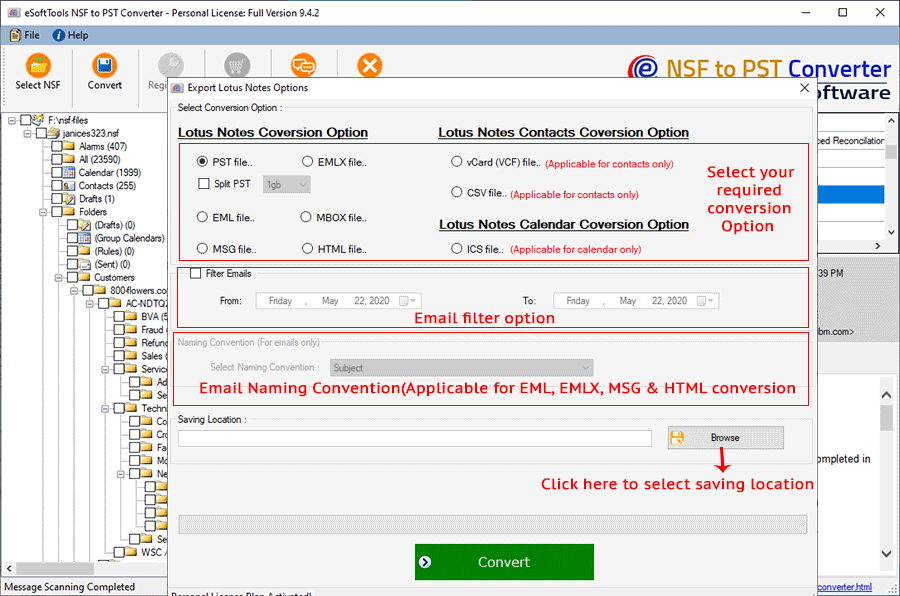
- In the last, click the Convert button and start the conversion process of NSF contacts to CSV.
Conclusion
In this informative guide, we have explained the reasons and automated methods to convert Lotus Notes contacts to CSV files. The eSoftTools NSF to PST Converter software converts any number of NSF contacts to a CSV file quickly & instantly. So, try this tool now.

No Comments yet!