Do you want to import EML files to Thunderbird? If yes, then read this blog and you will get an answer to your query. In this blog, we have explained an automated method to import EML files to Thunderbird.
Overview
Many email clients like Microsoft Outlook and Apple Mail support the EML file format. If you have EML files but do not have an email client that supports them, Thunderbird is a great option. It is a free open-source email client that can be downloaded from the Internet. Thunderbird is a popular and easy-to-use email client that can easily manage multiple email clients.
Reasons to import EML files to Thunderbird
There are various reasons to import EML files to Thunderbird why users want to import EML files to Thunderbird
- Thunderbird has various advanced features.
- Thunderbird is a free open-source email client that can be downloaded with the help of the internet.
- Thunderbird has advanced security features.
- EML files become more manageable by converting to Thunderbird.
Also Read: How to convert .eml to Outlook format?
Best Automated method to import EML files to Thunderbird
The best-automated method for importing EML files to Thunderbird is eSoftTools EML to Thunderbird converter software. This software easily converts EML to Thunderbird-supported MBOX files, making it the easiest way to import EML files to the Thunderbird email client without any data loss. It converts EML files of all email clients like Outlook Express, Windows Live Mail, etc.
Key features of EML to Thunderbird Software
- Import EML/EMLX with emails and attachments to Thunderbird.
- Provides two options for file adding- Select EML file and Select EML folder.
- Export EML files to Thunderbird without disturbing email formatting and structure.
- Convert EML emails with attachments and metadata(To, cc, bcc, subject and from) to MBOX files.
- Convert the EML folder to MBOX and import EML to Thunderbird configured profile.
- Migrate EML files to cloud-based applications such as Office 365, Outlook.com, Gmail, Yahoo Mail, and IMAP email accounts.
- Compatible to run on all editions of the Windows Operating System from current to below versions.
Step by Step approach to convert EML to Thunderbird
- Download and install eSoftTools EML to Thunderbird software in your system.
- Import EML files and folders into the software with the file-adding options.

- In the preview panel, preview the EML files and folders and have the option to select EML files and folders that is to be convert.
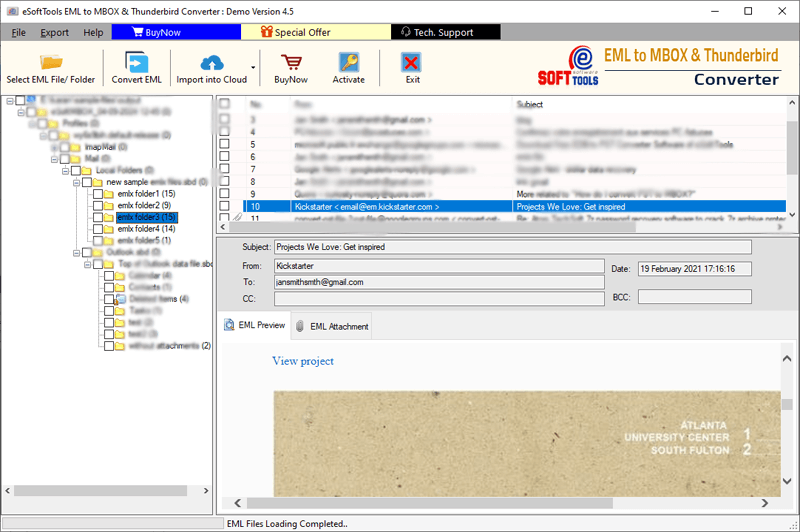
- Click Convert EML and the conversion window will open.
- Choose any one of the options from Export to MBOX and Export to Thunderbird conversion option.
- Apply the email filtering and other required settings according to your needs.

- At last, press the convert button and start the conversion process from EML to Thunderbird.
Conclusion
In this blog, we have explained the reasons and best-automated method to convert EML to Thunderbird. In the demo version, you can convert 25 emails from each folder of EML files to MBOX or Thunderbird. If you are satisfied with the demo version, then you can buy the license of the software.

No Comments yet!