MBOX files are supported by many email clients. If you have an MBOX file and want to import it to Gmail then you are in the right place. In this blog, we have written manual and automated methods to import MBOX files to Gmail with or without Thunderbird. So, let’s not waste time and discuss the process.
MBOX and Gmail Overview
MBOX, also known as Mailbox, is a file format used by many email clients such as Mozilla Thunderbird, Apple Mail, Opera Mail, Entourage, etc. It stores all the emails and their attachments in a series.
Gmail is an email client that is widely used. It provides good storage space to users and other advanced features such as Google Drive, Google Calendar, Google Sheets, Google Slides, etc.
Some reasons to import MBOX files to Gmail
- Gmail Flexibility and Accessibility: Gmail is an email client that is cloud-based and you can access Gmail from anywhere, anytime and from any device with the help of the internet.
- Provide Enhanced features: Gmail provides email service with other features such as Google Drive, Google Sheets, Google Calendar, Google Slides and many others.
- Free Up Storage space: The MBOX file consists of emails stored in one place. If you have a large-size MBOX file in your system it takes large space in your computer but if you import an MBOX file to Gmail it will clear space in your system.
- Enhanced Security: If you import an MBOX file to Gmail then files are saved from corruption due to virus attacks and other malicious activity.
Also Read: How to Extract Attachments From MBOX File?
Methods to import MBOX to Gmail
- Manual Method
- Automated Method
Manual Method to import MBOX to Gmail
In the manual method, you upload the MBOX file to Mozilla Thunderbird and then Gmail has a built-in feature to import the MBOX file to your Gmail account. By following the steps you can upload an MBOX file to Gmail.
- Download and install Mozilla Thunderbird on your system.
- Click on the Import button to upload the MBOX file into the software.
- Open Gmail and log in with your account credentials.
- Then go to Settings>>Account Settings>>Accounts and Import.
- Click on the Import Mail and Contacts.
- In the pop-up window, enter the email address configured with Thunderbird.
- Then, select Import Mail and click on the Start import.
Automated Method to import MBOX to Gmail
In the automated method, you can use third-party software, eSoftTools MBOX converter software to import MBOX files to Gmail. With the help of this tool, you can convert MBOX files to other file formats like EML, MSG, EMLX, HTML, NSF, etc. Moreover, you can migrate MBOX files to cloud applications like Gmail, Yahoo Mail and Microsoft/Office 365.
Key features
- Capable of loading single and multiple MBOX files in this software at a time, and can auto-detect MBOX files from your system.
- Preview the files and folders of the MBOX file in the preview panel.
- Have a feature of email filtering through which you can filter emails according to date, you only have to give the starting date and ending date.
- Easily migrate MBOX files to your Gmail account in this software by entering the login details of your Gmail account.
- Provides a user-friendly graphical interface that anybody can use easily.
Steps to transfer MBOX emails to Gmail Account
- Download and install eSoftTools MBOX Converter Software in your system.
- Open and click the ADD File/ Folder button of the software at the start-up screen.
- Choose from the three options to load MBOX files into the software.
- Single MBOX file: You can add a single MBOX file to the software.
- Multiple MBOX files: You can load multiple MBOX files in the software.
- Auto-detect MBOX file: The software will automatically detect MBOX files inside your system and load MBOX files in the software.
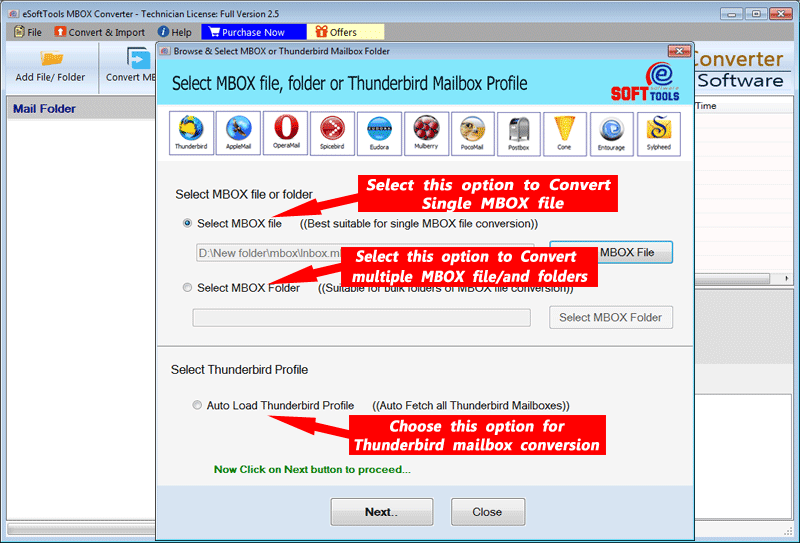
- After loading MBOX files in the software, you can click the Next button.
- Now software extracts the files and folders from MBOX files and gives a preview of the files and folders of MBOX files.

- Select conversion option as Gmail to import MBOX files to Gmail.
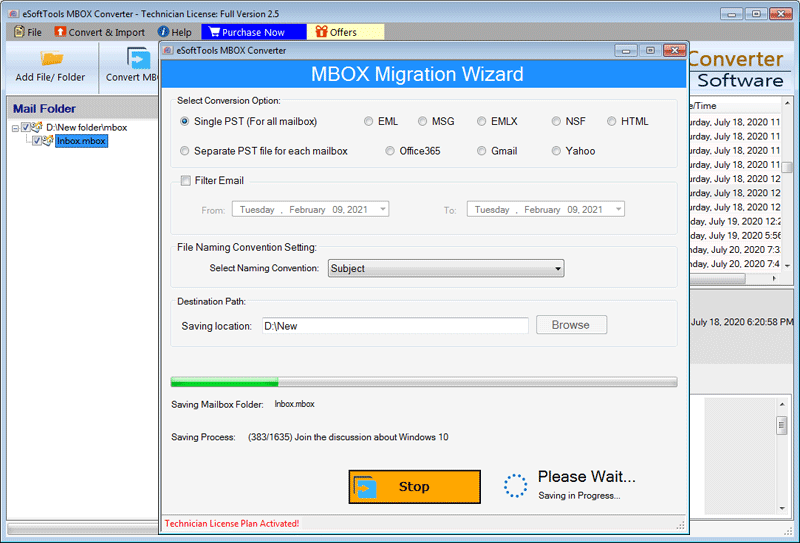
- Now enter your Gmail Login details and press the Authenticate Login button.
- After login, you can apply settings like Mail filter, Naming Convention and Saving location according to your need.

- At last click on the Convert button and the migration process will be started.
Conclusion
Use the eSoftTools MBOX Converter software, which will transfer effortlessly and without any data loss. There are manual methods available, but they are complex and not trustworthy. The automated method explained above is safe and accurate to import MBOX files to Gmail. In the demo version, you can transfer 25 files from each MBOX folder to your Gmail account.

No Comments yet!