Importing PST to Office 365 Webmail can be a challenging task. But this task becomes easy if the right technique is followed. In this blog, we will explain the automated method on how to import PST to Office 365 webmail.
Overview
PST (Personal storage Table) is the outlook file that is used to store emails, contacts, calendars, tasks, notes, etc. It is used when a user wants to have a backup email account and wants to transfer from one Outlook account on one computer to another Outlook account on another computer.
Office 365 also contains the Outlook that stores emails, contacts, calendars, tasks, notes, etc and that is accessed by web browser.
Importing PST files to Office 365 can be a daunting task. If you use professional software this task becomes easy. The software directly import the PST to Office 365 with a few clicks.
Best Software to import PST to Office 365 webmail
The best software to import PST to Office 365 webmail is eSoftTools Outlook PST recovery software. This is the most advanced and reliable software to import PST to office 365. With a few clicks you can directly import PST to Office 365 webmail.
Key features
- It allows the conversion of PST files into multiple file formats such as MBOX, MSG, EML, EMLX, HTML, etc.
- In the preview panel, you can view files and folders of the PST file and select the files and folders that you want to convert into other file formats.
- It allows sending PST file data to web-based email clients such as Gmail, Yahoo Mail, Office 365, and Outlook.com.
- It allows the splitting of large-size PST files into small-size PST files with the split feature.
- It can work with all Outlook editions up to 2019 (32/64 bit).
- It can work with all editions of the Windows Operating System such as Windows 11, 10, 9, 8.1, 8, 7, Vista, XP and older versions.
- It can repair corrupt PST files and recover items such as emails, calendars and contacts.
Also Read:- How to Export Contacts From Outlook to Gmail?
Steps to import PST files to Office 365
- Download and launch eSoftTools Outlook PST recovery software in your system.
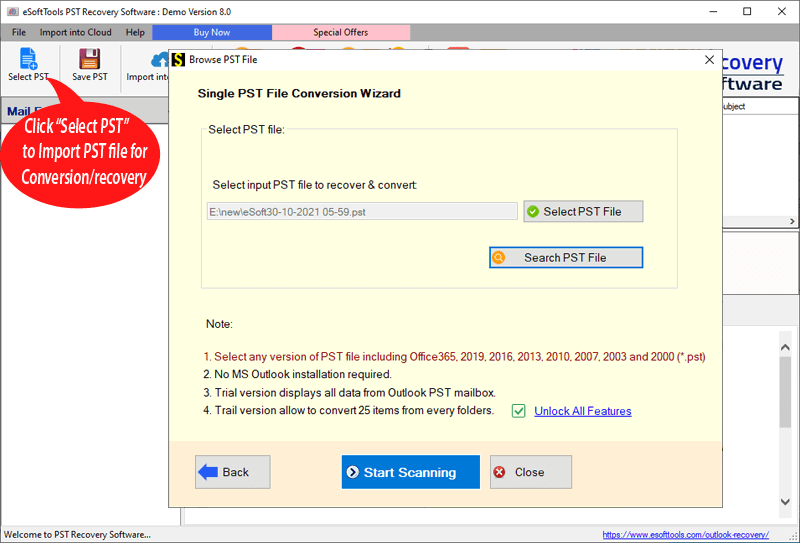
- Click on the Select PST button from the menu bar.

- Now choose the PST conversion mode.
- Single PST file conversion– You can load a single PST file in the software in this conversion mode.
- Bulk PST file conversion– You can load multiple PST files in the software in this conversion mode.
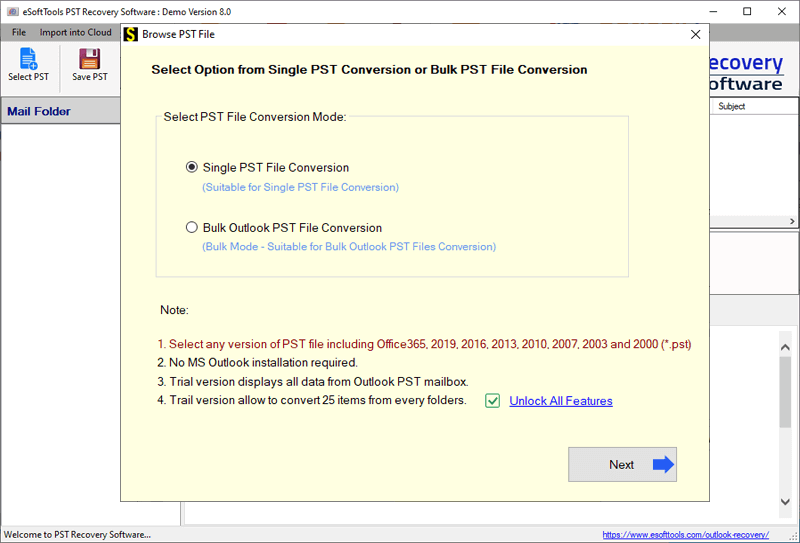
- Select the file and click the Next button to start the scanning process.
- Get the preview of files/folders of the PST file, select the files and folders that you want to convert and press the save PST button.
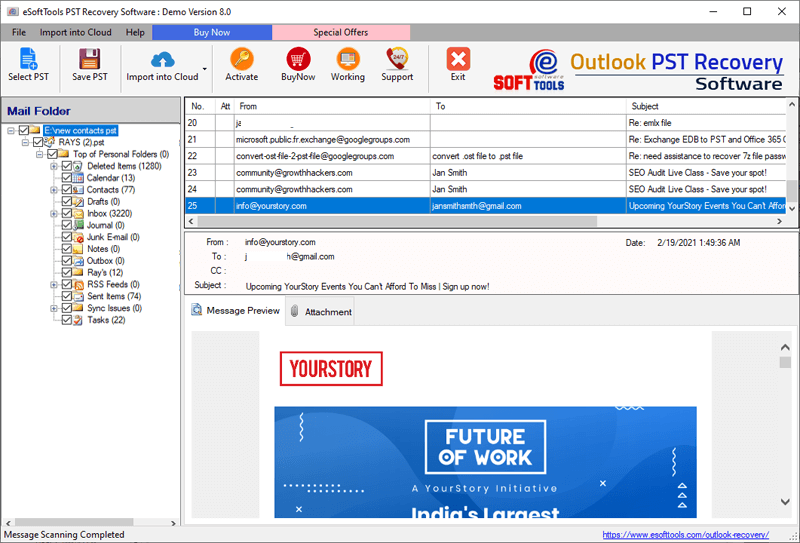
- On the top panel, click the Import into Cloud and select the Import PST to Office 365 option from the drop-down list.
- Enter your account credentials such as Office 365 email address and password.
- You can apply the mail filtering feature if you want to apply.
- Browse the location to save the output file on your computer
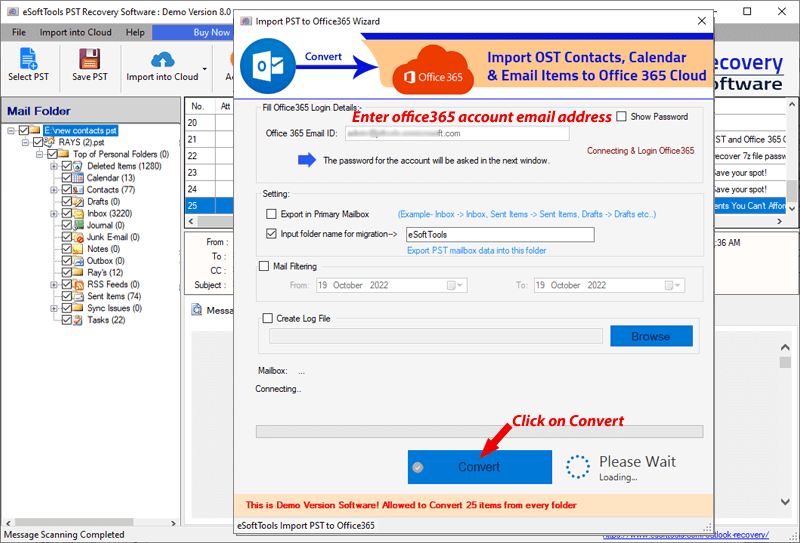
- Click the Convert button to start the migration of the PST files to Office 365.
Conclusion
Many Office 365 users face the problem when they want to import their emails from a desktop Outlook account to Office 365. Since manual methods require Office 365 configuration to desktop Outlook and it is a lengthy and time consuming process. Automated method can directly import the Outlook emails to Office 365 in a short time and with a few clicks.



No Comments yet!