If you are facing a problem in taking a backup of an Outlook Email OST file, then read this blog. Here you will get to know the Manual and Professional methods for solving your problem.
Microsoft Outlook uses two file formats, OST and PST. To take a backup of the OST file, we have to convert it into PST.
Why take a backup of an Outlook Email OST file?
- Exchange Server Crashdown- Sometimes the Exchange Server crashes down due to a virus attack, malicious activity, etc. So when OST files get synchronised with the Exchange server, they also get corrupted, so at that time we have to take a backup of the OST file.
- Exchange Server downtime- Sometimes the Exchange server is down due to maintenance issues. Due to that, we are not able to access the OST files. If we want to check the OST file, it will not open due to we want to convert the OST file.
- Accidental deletion- Sometimes email files on the server are accidentally deleted by the user. So the OST files will also get deleted from Outlook. At this time, we need to have a Backup an Outlook Email OST file.
Methods to take a backup
- Manual Method
- Professional Method
Manual Method
Method 1: Import/Export Wizard
Open Outlook and open the email profile associated with the OST file.
Click on the File tab and then select Open & Export >> Import/Export.
Select the option “Export to a file” and hit Next.
Now choose “Outlook Data File pst” and press the Next button.
Select the mailbox folder to export from.
In the next step, select the destination for the output folder.
Lastly, press the finish button and start the export process.
Method 2: Professional Method
Use the eSoftTools OST to PST Converter software to convert OST files to PST files. It is a reliable and easy method where you have to load an OST file, and in a few steps, you can convert it into a PST file. In the preview panel of this software, you can see the inner data of the OST file. You can see the list of files and folders in the OST file. You can check and uncheck the files and folders of the OST file that you want to convert into a PST file.Split the large OST file into multiple small PST files. OST to PST conversion in a few steps
Also Read:- OST Viewer Free Download
Steps to Backup an Outlook Email OST file
- Download eSoftTools OST to PST converter software and install it.
- Launch the software on your local computer.
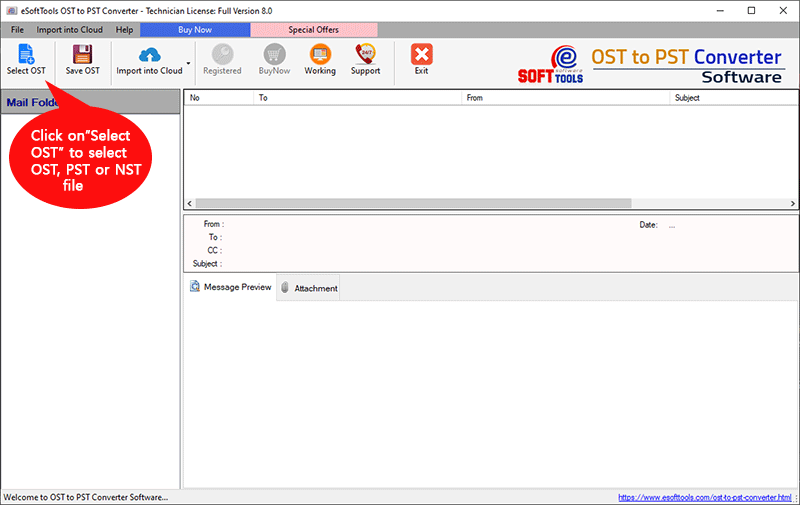
- Press “Select OST” and add OST files from local or network drives.
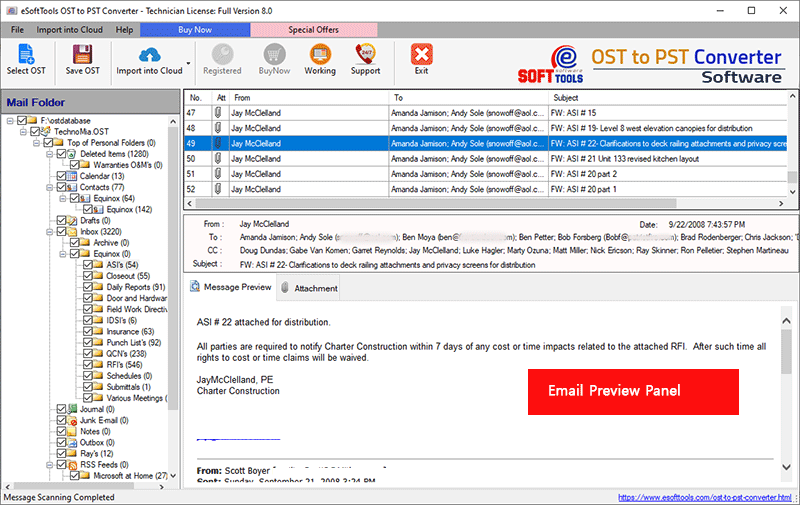
- In the side panel, you can preview files and folders of the OST file.
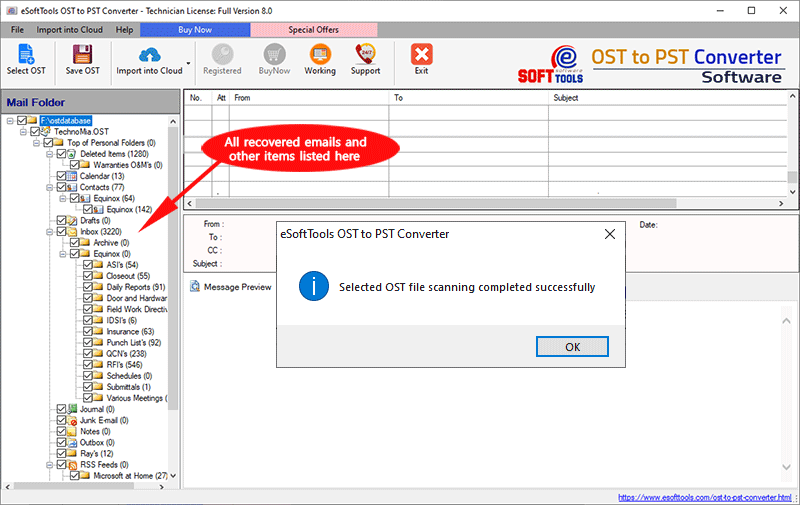
- Select the necessary files and folders of the OST files.
- Click on the ‘Save OST’ button and select the ‘Export to PST’ radio button from the OST conversion wizard.
- If you want to split an OST file, click the ‘Split OST’ button, and you can split the OST file into multiple PST files of different sizes as given in the conversion wizard.
- Browse the location where you want to save the PST file on your computer.
- Choose the ‘Filter’ option if you want to filter emails( by date).
- Select the ‘Convert’ button, and you can start the conversion process.

Conclusion
We have mentioned the Manual method and the Professional method to back up an Outlook Email OST file in this blog. Now you conclude that the Professional method is easier than the manual method, so try and use eSoftTools OST to PST Converter software.

No Comments yet!