If you are looking to merge different MBOX files from different Email Accounts or systems into a single MBOX file and remove duplicate emails then this blog is for you. In this blog, we have written an automated method to merge different MBOX files into a single file.
Overview
MBOX files are one of the mediums to store all emails and attachments of the email account in a single folder. A single MBOX file holds all emails with all relevant information in the mailbox.
When you use an MBOX supporting email client like Thunderbird, you can open multiple email accounts in Thunderbird. The different email accounts mean you have different MBOX files to hold them. Now, if you want to merge different MBOX files into one MBOX file, you need to merge them.
Why merge different MBOX files into a Single MBOX file
There are several reasons why users want to merge different MBOX files into a Single MBOX file. Some of these include
To speed up the search process in different email accounts and folders, merging is one of the options. Merging can help in a different way
- Saving and sharing MBOX files becomes easy by merging.
- Merging MBOX files helps in the backup of data.
- You can merge email files with other email clients like MS Outlook.
- Removing duplicates and freeing up storage space can be done by merging emails.
Also Read: How to Convert MBOX to EML Files
How to Export emails from MBOX to Office 365?
How to Add Bulk MBOX Files into a Single File Automatically?
Download and install the eSoftTools MBOX Splitter and Merger software on your system. This software allows the merging of different MBOX files into one MBOX file with ease. This software, with merging, also allows splitting of large MBOX files into smaller MBOX files. It allows users to merge MBOX files by three different options- Merge all items, Merge by Date, and Merge by year.
Advantages of using Automated software
- Rapidly merge and split MBOX files with ease and complete safety.
- View all the emails, attachments and other information of MBOX files in the preview panel.
- Add an MBOX file with three different options- Select MBOX file, Select MBOX folder and Autoload Thunderbird profile.
- Provides 4 different options for splitting MBOX files- Split by size, date, year and email address.
- Merge MBOX files with 3 different options- Merge all items, by date, or merge by year.
- Split and merge MBOX files of any size without size restriction.
- A user-friendly graphical interface allows technical and non-technical people with ease.
- Compatible with all editions of the Windows operating system, like Windows 11, 10, 8.1, 8, 7 and below editions.
Steps to merge multiple MBOX files into a single file
- Download and install eSoftTools MBOX splitter & Merger software in your system.
- Click the Add File/folder button to add MBOX files/folders to the software.
- Choose the file selection option to add MBOX files/folders
- Single MBOX file– To add a single MBOX file to the software.
- Single MBOX folder– To add a single MBOX folder to the software.
- Auto-load Thunderbird profile– Auto-detect and load the Thunderbird profile in a single click.

- Load all the MBOX files/folders and preview them in the preview panel.
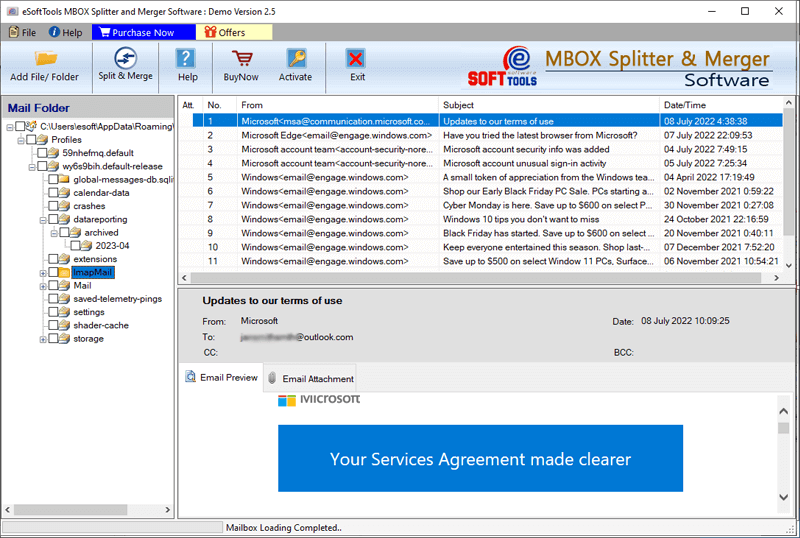
- Select the files/folders to be merged and hit the split & Merge button.
- Select the Merge MBOX file option and click Next button.
- Choose one option from the different merging options according to your needs-
- Merge all items– Merge all the emails and data items of different MBOX files into a single MBOX file.
- Merge by date– Merge emails and data items of different MBOX files into a single MBOX file of a specific date.
- Merge by Year– Merge emails and data items of different MBOX files into a single MBOX file of a specific year.

- Click on the browse button to save emails to your desired location on the computer.
- At last, click on the Merge button and begin the merging process.
Conclusion
Merging MBOX files is an essential task for those who want to manage their MBOX emails efficiently. The above-mentioned eSoftTools MBOX Splitter and Merger software allows you to merge and split MBOX files easily and efficiently. It is essential to use the trustworthy software that eSoftTools provides.

No Comments yet!