There can be various reasons for moving folders from one Gmail account to another Gmail account. This blog will cover the manual and automated methods that help you move folders from one Gmail Account to another Account.
If you have a new Gmail account there is no need to let go of older emails. You can move older emails to your new Gmail account.
Methods to move folders from one Gmail Account to another Account
- Manual Method
- Automated Method
Manual Method
You have to follow the steps to move emails from one Gmail Account to another Account.
- Login to your Gmail account in which you want to import emails.
- Click on the gear icon and go to settings from the menu.
- Go to Accounts and Import >> Import mail and contacts.
- Enter the email address of the Gmail account from which emails are to be imported.
- Click Continue and enter Gmail account credentials.
- Now select Import mail from the options and click Start Import.
- Now the system will start importing emails from the selected Gmail account.
Automated Method
In the automated method use eSoftTools Gmail to Gmail migration software. It can move emails from one Gmail account to another Gmail account. In the preview panel, you can view the emails of one Gmail account and select the emails to transfer to another Gmail account. In the mail filtering option, you filter emails according to date. Emails with attachments are moved from one Gmail account to another Gmail account. It has an easy graphical interface that even non-technical people can use easily. It can work with all editions of the Windows Operating System such as Windows 11, 10, 9, 8,7, Vista, XP and older versions. In a few steps, you can move emails from one Gmail accounts to another Gmail accounts
Also Read:- How to Download Gmail Emails to Hard Drive?
Steps to Move Folders from One Gmail account to Another account
- Download and install the eSoftTools Gmail migration tool in your system.
- Select “G-suite” or “Gmail” from the available cloud and webmail app.

- Enter the Gmail login address and password.

- Click on login start importing all the emails in the software and preview emails on the side panel.

- From the next window select the Import to Gmail option and click Next.

- Enter the other Gmail Account credentials and click login.
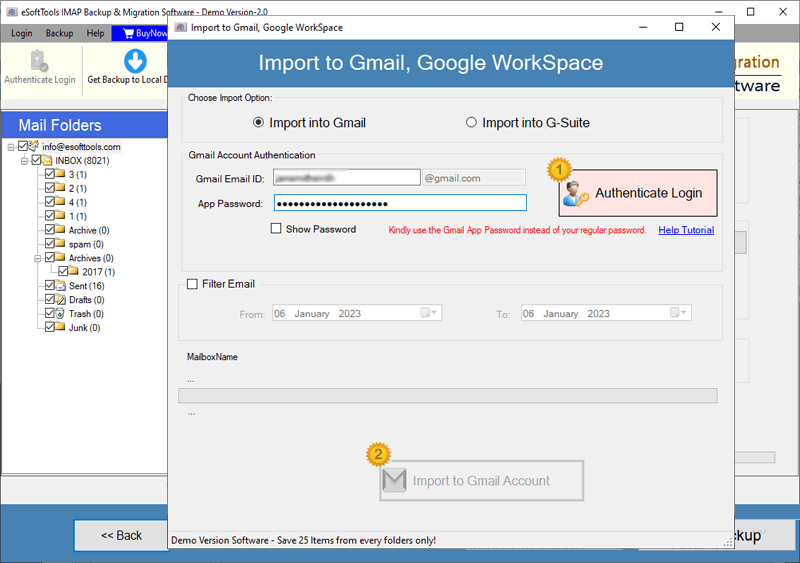
- Apply the Mail filtering option and click on the Import to Gmail button.

Conclusion
Moving emails from one Gmail account to another Gmail account is a huge task. It is time-consuming and requires a lot of effort. We have described the automated method, using third-party software eSoftTools Gmail to Gmail Migrator, you can easily move emails from one Gmail account to another Gmail account.

No Comments yet!